
Work with the four AI assistants
Ask the specialist for your task and review proposed store changes.
Access depends on your current plan, permissions and store configuration.
Before you start
Use the correct store and give the assistant specific products, dates or goals.
Open the relevant dashboard screen ↗Steps
Use Khalid for products, categories, prices and stock.
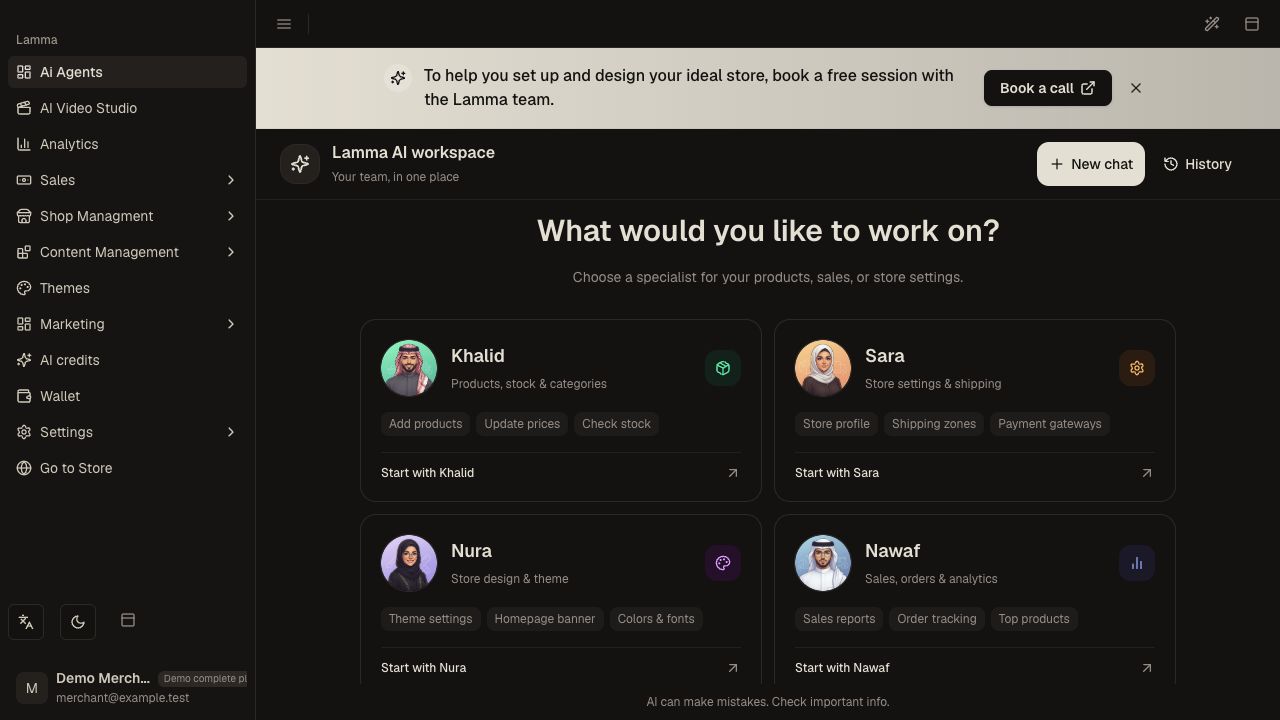
Step 1 — Choose the relevant specialist from the AI dashboard; Khalid helps with products, categories, prices and stock.Demonstration store · sample data. Available features may differ by plan or rollout.View full-size screenshot ↗ Use Sara for store settings, payment configuration and shipping.
Use Nura for theme settings, banners, colors, menus and layout sections.
Use Nawaf for orders, sales, performance and launch readiness.
Read the proposed plan and confirmation details before approving a change.
Check the actual product, setting or order after a reported completion; keep the conversation if an action fails.
What to check afterward
You use a specialist for the task and can verify the resulting saved business state.
If something does not work
A reply or proposal is not proof that a change was applied. If a tool fails or the result is uncertain, inspect the actual record before repeating a broad action. Never paste provider secrets into chat.
Still need help? Contact Lamma support with your store, the affected record and the exact error. Keep passwords and API keys private.