
Manage product brands
Group products by brand and maintain their assignments.
Access depends on your current plan, permissions and store configuration.
Before you start
Prepare the brand name and any available brand image.
Open the relevant dashboard screen ↗Steps
Open Brands and create the brand record using the displayed fields.
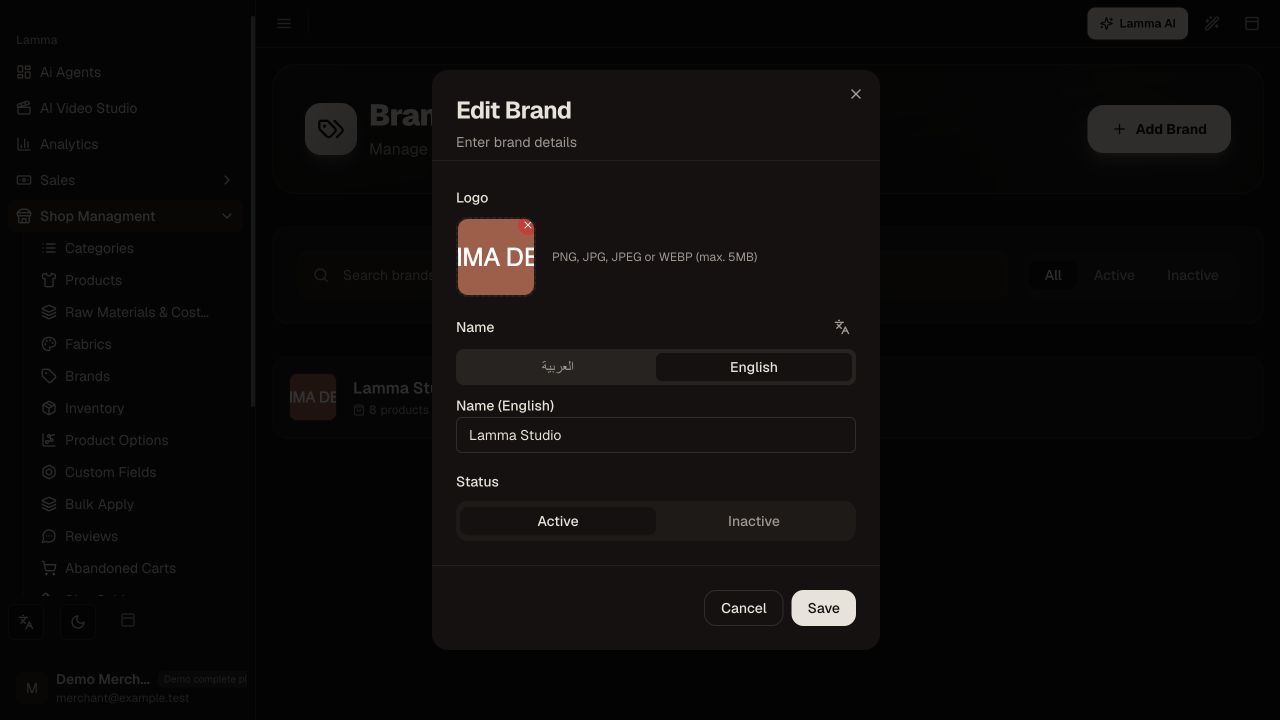
Step 1 — Enter or update the brand name, logo and active status in the brand dialog.Demonstration store · sample data. Available features may differ by plan or rollout.View full-size screenshot ↗ Add the brand to a product in its editor, or manage products from the brand screen.
Review and remove incorrect assignments.
Save changes and check the affected product.
If your storefront exposes a brand link or your menu includes one, open it and verify the listed products.
What to check afterward
The catalog has consistent brand records and the right products assigned to them.
If something does not work
Brand presentation depends on the theme and navigation configuration. If an assignment is missing, check the product and the brand product list.
Still need help? Contact Lamma support with your store, the affected record and the exact error. Keep passwords and API keys private.