
Organize products into categories
Create categories and subcategories that make your catalog easy to browse.
Access depends on your current plan, permissions and store configuration.
Before you start
Plan the main groups customers will recognize.
Open the relevant dashboard screen ↗Steps
Create a category and enter its name and content in your enabled languages.
Add the category image and visibility settings shown in the form.
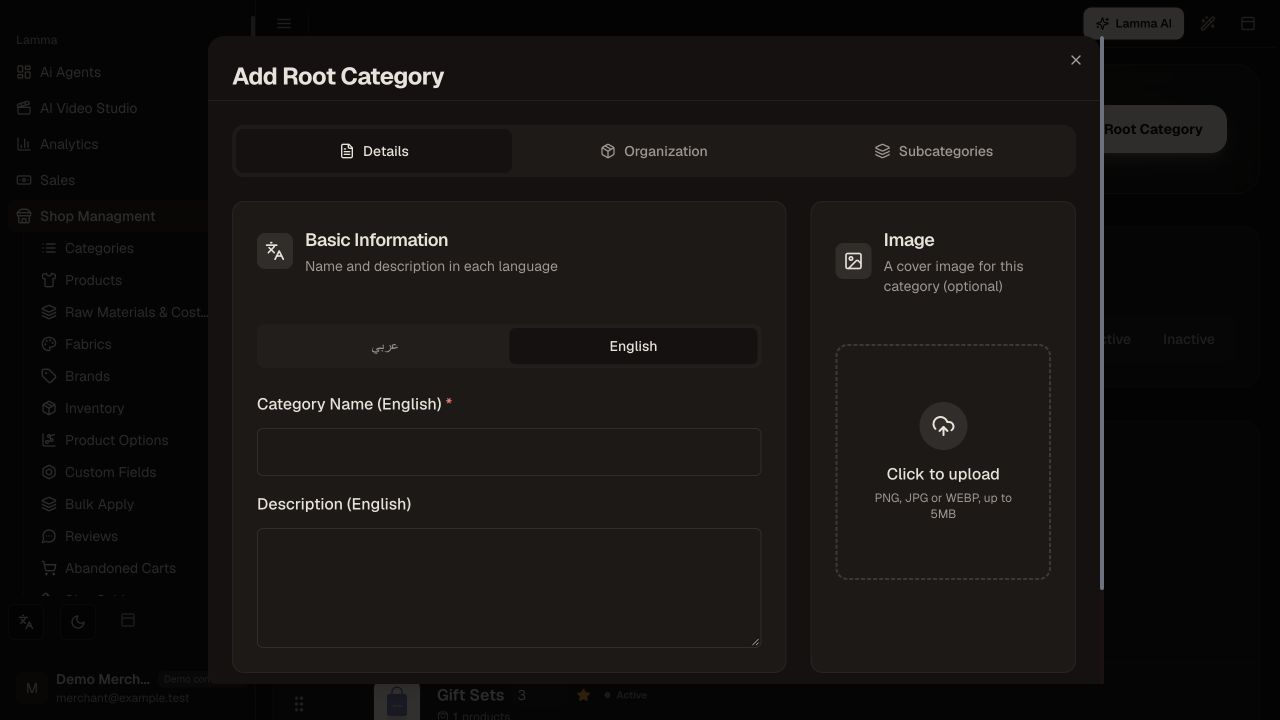
Step 2 — Enter the category name and description in each language and add its optional cover image.Demonstration store · sample data. Available features may differ by plan or rollout.View full-size screenshot ↗ Select a parent when the category should be a subcategory.
Assign products from the product editor or use Bulk Apply for a larger selection.
Add the category to your menu if customers should reach it directly.
Visit the collection or category page and check the products and image.
What to check afterward
Products appear in the intended browse structure and linked categories open correctly.
If something does not work
Creating a category does not automatically put it in every navigation menu. Check product assignments, category status and menu links independently.
Still need help? Contact Lamma support with your store, the affected record and the exact error. Keep passwords and API keys private.