
Collect product personalization and checkout details
Ask for text, a selection, a date, a file or another supported customer input.
Access depends on your current plan, permissions and store configuration.
Before you start
Decide which inputs are mandatory and whether any choice adds to the price.
Open the relevant dashboard screen ↗Steps
Open Custom Fields and create or edit a field template.
Choose from the offered field types: text, numeric, dropdown, date of birth, checkbox, file or textarea. Enter the labels and dropdown choices.
Set required fields and any supported price increases or conditional dependencies.
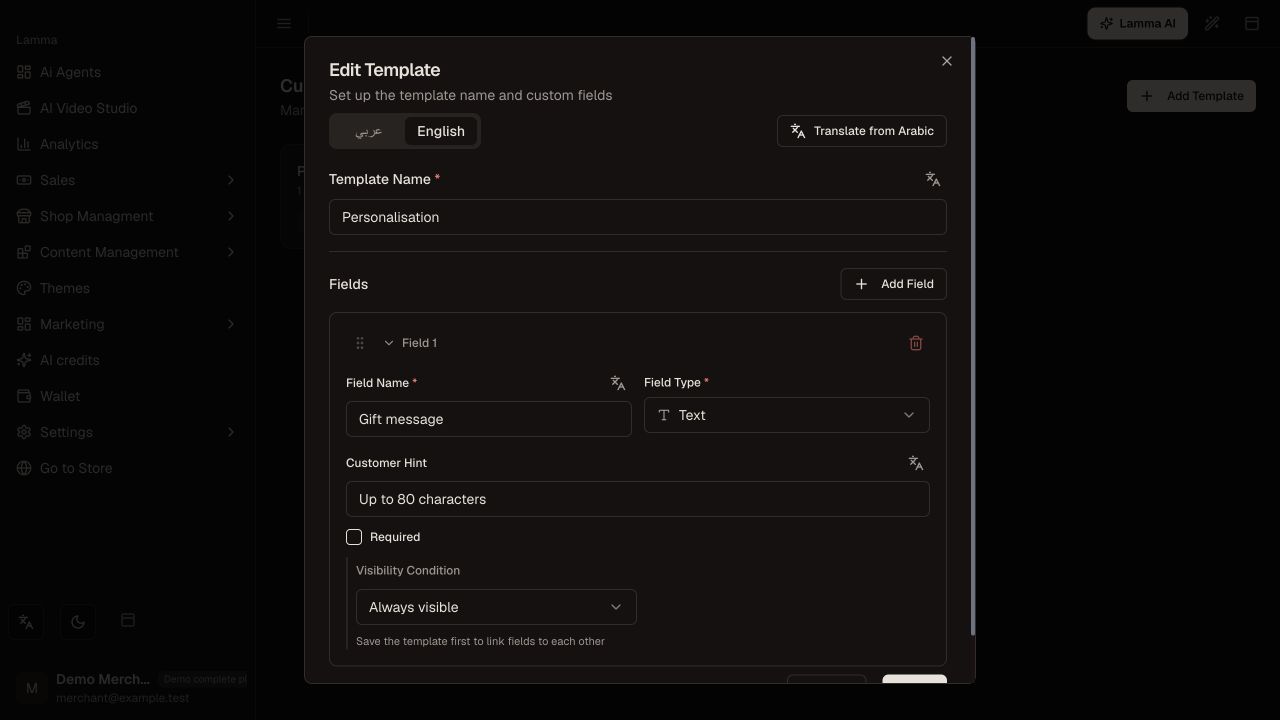
Step 3 — Review the field label, type, customer hint, required setting and visibility condition.Demonstration store · sample data. Available features may differ by plan or rollout.View full-size screenshot ↗ Attach product fields through the product editor. Configure checkout fields in the checkout settings where offered.
Save and test a valid response, a missing required response and any price-changing selection on the storefront.
What to check afterward
Customers supply the required details and the saved order contains their choices.
If something does not work
If checkout or add-to-cart refuses an item, inspect required fields and dependent choices. A product option chooses a variant; a custom field collects extra information.
Still need help? Contact Lamma support with your store, the affected record and the exact error. Keep passwords and API keys private.