
Set up product options and variants
Sell choices such as size or color with their own stock, price and media.
Access depends on your current plan, permissions and store configuration.
Before you start
Check that your plan includes products with options.
Open the relevant dashboard screen ↗Steps
Create a reusable Product Options template when several products share the same choices.
Open the product editor and configure its options and values, such as Size: Small, Medium and Large.
Review the resulting variants. Set each variant SKU, price, stock and availability as required.
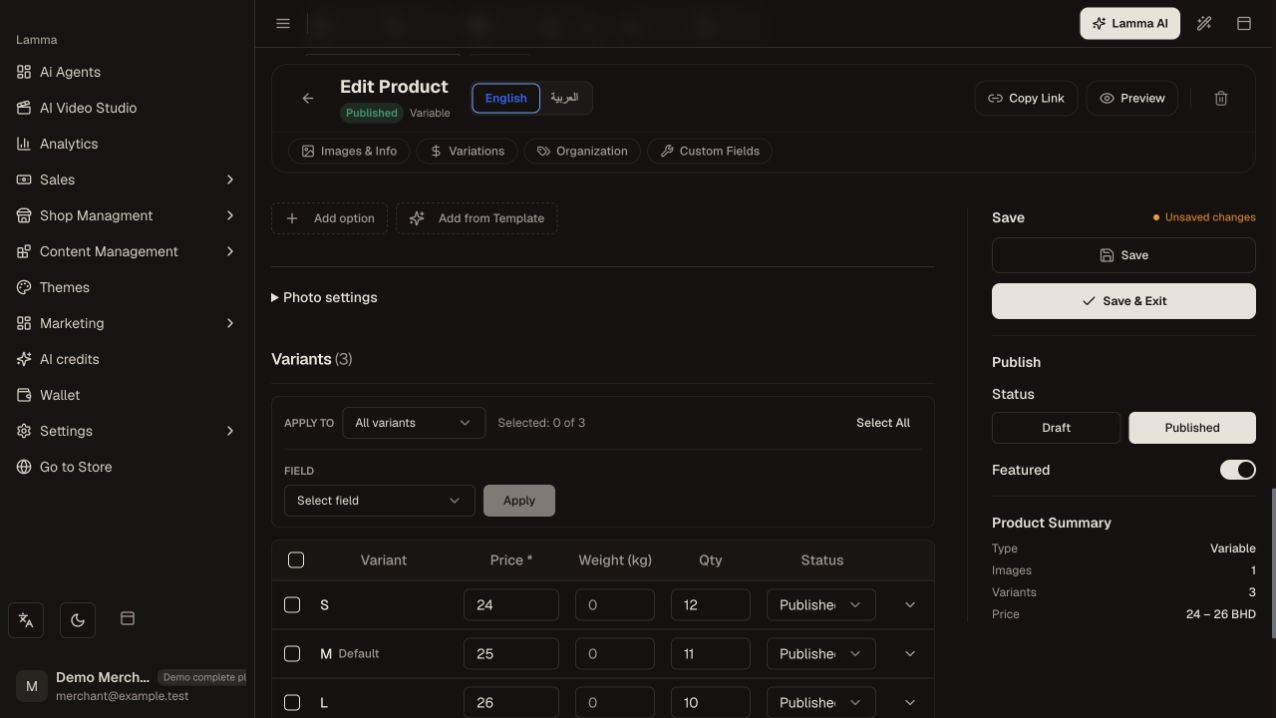
Step 3 — Review the size variants and their price, quantity and publication fields before saving.Demonstration store · sample data. Available features may differ by plan or rollout.View full-size screenshot ↗ Attach option-specific images where offered and save their order.
Save the product, then select every choice on the storefront and check that the correct variant and price reach the cart.
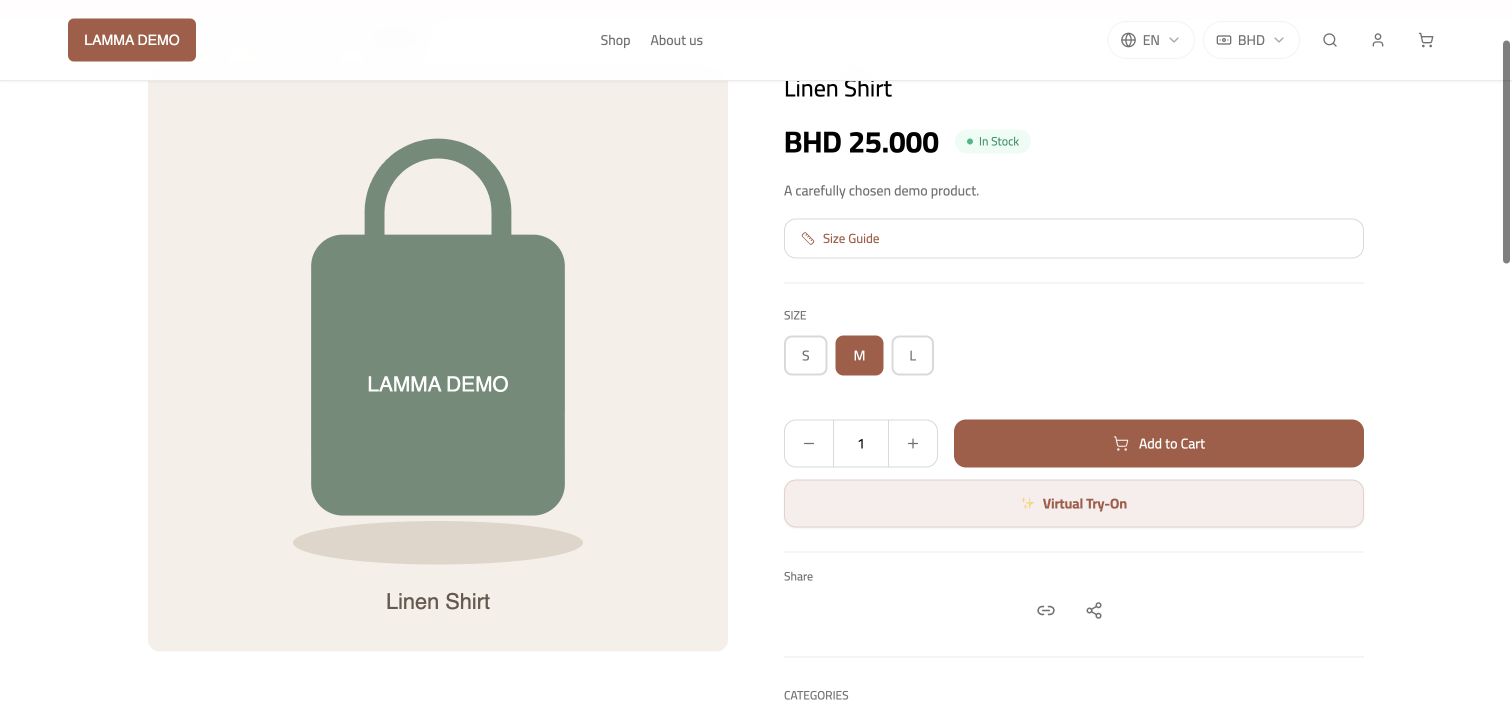
Step 5 — Select each available size and verify the resulting price before adding the product to the cart.Demonstration store · sample data. Available features may differ by plan or rollout.View full-size screenshot ↗
What to check afterward
Customers can select a valid combination and the order records the selected variant.
If something does not work
An unavailable combination may be out of stock or incomplete. Check the variant itself rather than only the parent product. Editing a template should be followed by checking the products that use it.
Still need help? Contact Lamma support with your store, the affected record and the exact error. Keep passwords and API keys private.