
Manage custom storefront scripts
Install supported tracking or third-party snippets through the script settings.
Access depends on your current plan, permissions and store configuration.
Before you start
Requires custom-script access; keep a copy of the original snippet and know its purpose.
Open the relevant dashboard screen ↗Steps
Open Script Settings and create or edit an entry.
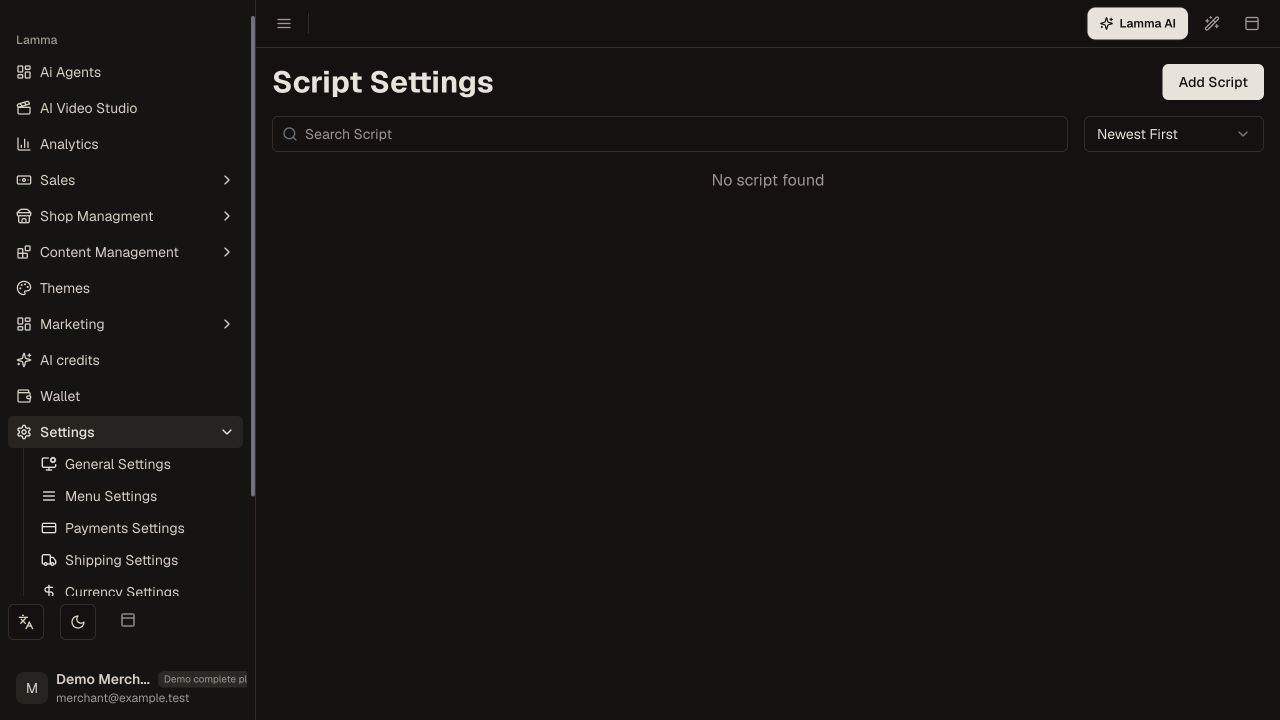
Step 1 — Open Script Settings and choose Add Script to start a new entry; existing entries appear in this list.Demonstration store · sample data. Available features may differ by plan or rollout.View full-size screenshot ↗ Paste the approved provider snippet in the intended location offered by the form.
Avoid installing the same tracker through both an add-on and a script unless the provider setup explicitly requires it.
Save and test the storefront, checkout and the provider diagnostic screen.
Disable or remove the entry if it causes an error, then confirm recovery.
What to check afterward
The configured snippet runs in the supported location without duplicating existing integrations.
If something does not work
Third-party scripts can affect page behavior and tracking. Never place a secret API key in browser-visible code. Use the dedicated integration when one exists.
Still need help? Contact Lamma support with your store, the affected record and the exact error. Keep passwords and API keys private.