
Configure Meta Pixel and Conversions API
Connect the store tracking add-on and check event delivery.
Access depends on your current plan, permissions and store configuration.
Before you start
Have the correct business Pixel ID and access to its Conversions API token.
Open the relevant dashboard screen ↗Steps
Open the Facebook Pixel add-on and check your plan/add-on access.
Enter the Pixel ID and Conversions API token through the protected configuration screen.
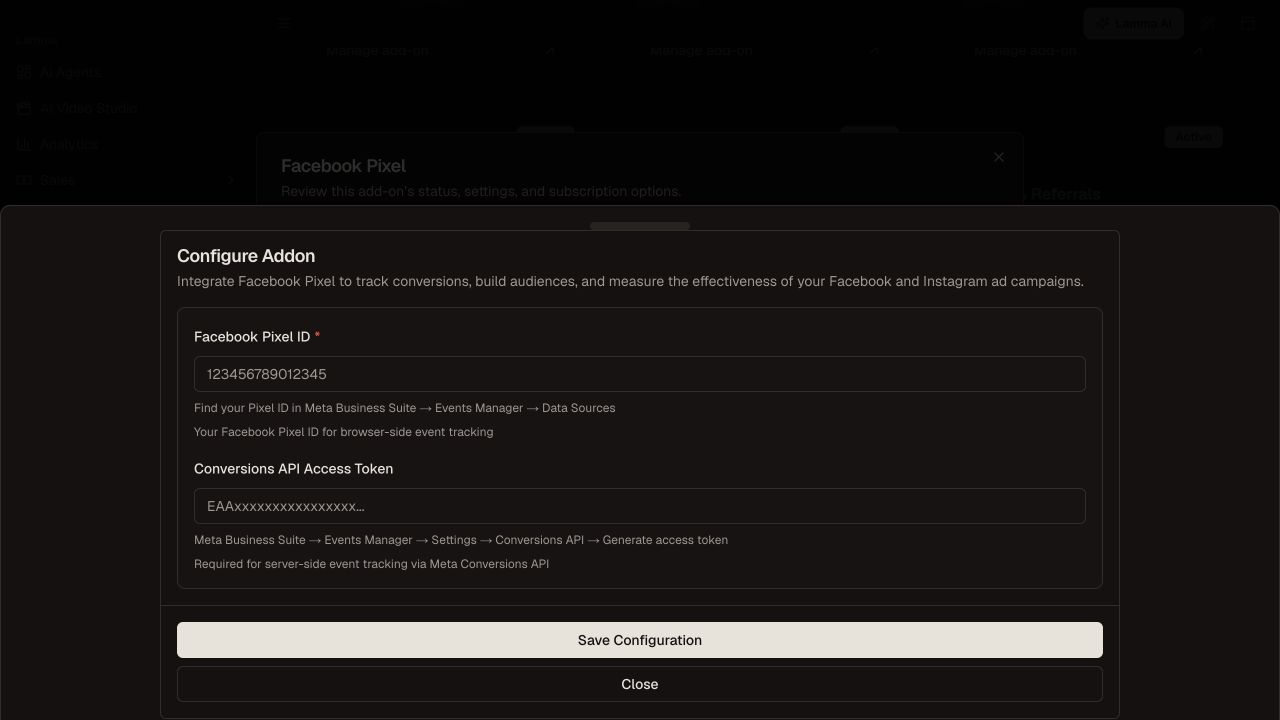
Step 2 — Configure the Pixel ID and protected Conversions API token in the Facebook Pixel add-on.Demonstration store · sample data. Available features may differ by plan or rollout.View full-size screenshot ↗ Save and follow the existing detailed Meta setup guide linked below.
Test the storefront purchase journey using the provider diagnostic tools.
Check browser/server matching and deduplication before trusting purchase totals.
Keep API tokens private and rotate them through the dashboard when required.
What to check afterward
The configured store can send the supported browser and server tracking events.
If something does not work
Meta event receipt does not prove an ad caused the order. Check consent, browser blocking, gateway return behavior and event IDs when diagnosing missing or duplicate conversions.
Still need help? Contact Lamma support with your store, the affected record and the exact error. Keep passwords and API keys private.