
Publish store information and policy pages
Create useful pages and connect them to your navigation.
Access depends on your current plan, permissions and store configuration.
Before you start
Prepare accurate business, delivery, return and contact information.
Open the relevant dashboard screen ↗Steps
Open Pages and choose the create action.
Enter the title and page content in the languages used by your store.
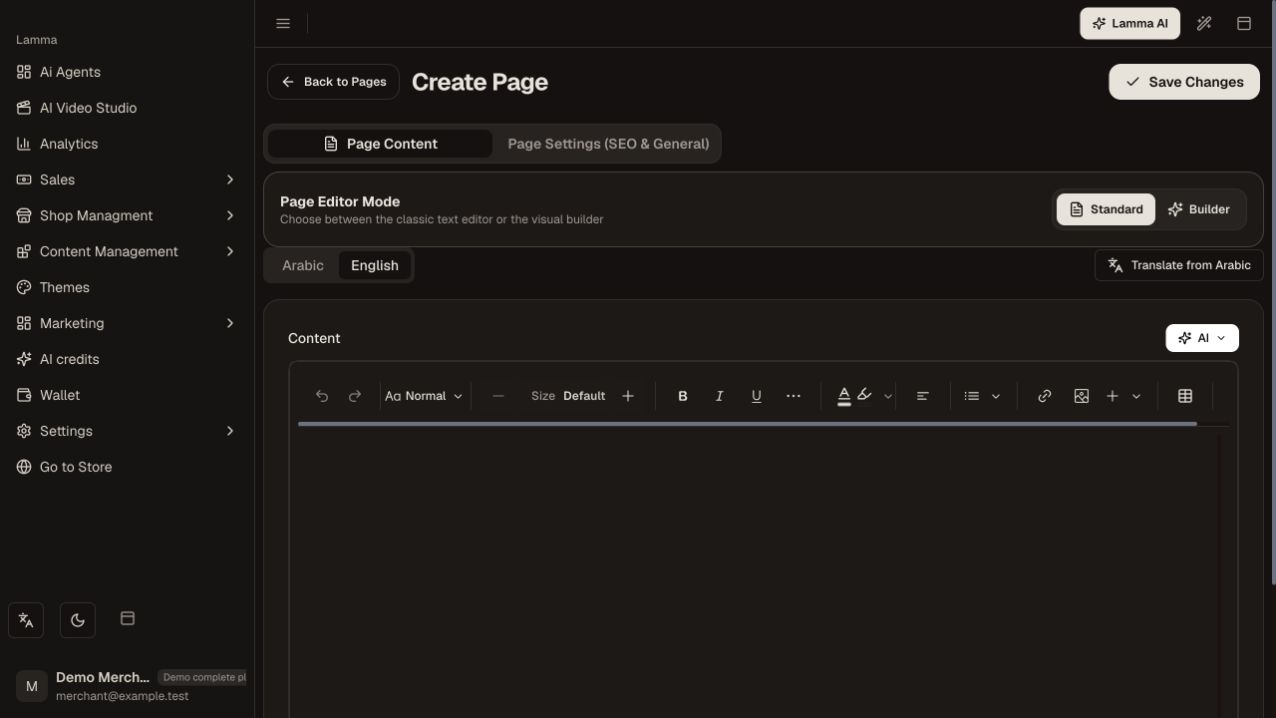
Step 2 — Choose the page editor mode and language, then enter the page content in the text editor or builder.Demonstration store · sample data. Available features may differ by plan or rollout.View full-size screenshot ↗ Review the page slug, publication and other controls shown in the editor.
Save and open the public page.
Add a menu link where customers should find it.
For generated policy text, replace assumptions with your actual business practices before publishing.
What to check afterward
Customers can open the saved page and find it through the intended navigation.
If something does not work
Saving a page does not automatically add it to a menu. A generated policy is a draft; do not publish delivery promises or return terms that your business does not follow.
Still need help? Contact Lamma support with your store, the affected record and the exact error. Keep passwords and API keys private.