
Understand POS add-on access
Check whether the point-of-sale integration is enabled for your account.
Account/provisioning dependent. POS is inactive in the reviewed default catalog definition.
Before you start
The local add-on definition marks POS inactive by default; availability must be confirmed.
Open the relevant dashboard screen ↗Steps
Check the add-on catalog for an available POS service.
If it is not offered, ask support about eligibility and the intended POS setup.
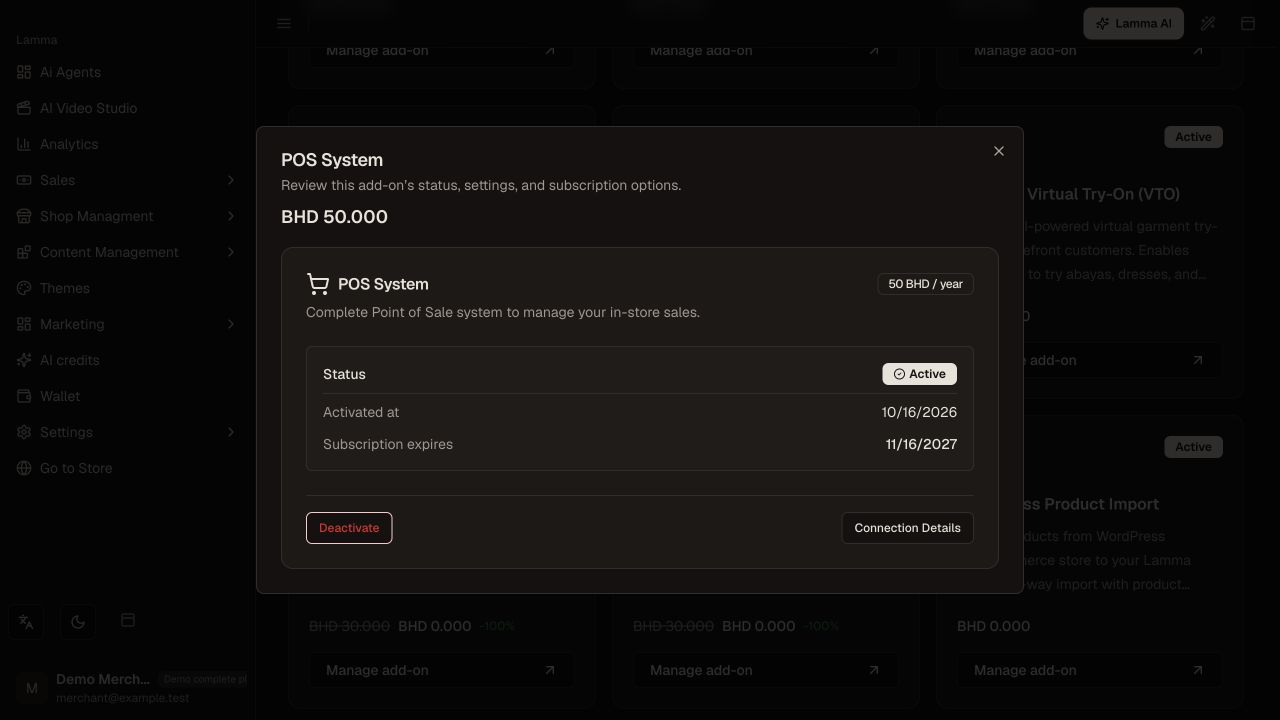
Step 2 — Review POS add-on access and subscription details, then confirm eligibility and provisioning with support.Demonstration store · sample data. Available features may differ by plan or rollout.View full-size screenshot ↗ If enabled, complete the account/provisioning configuration provided for your store.
Verify product stock and an authorized test transaction through the supported POS interface.
Confirm how the transaction appears in Lamma before using the integration for live sales.
What to check afterward
You have an explicit availability answer and, when enabled, a checked transaction path.
If something does not work
Backend routes and a seed description do not establish an active merchant POS service. This guide does not promise a public POS application or an automatic offline mode.
Still need help? Contact Lamma support with your store, the affected record and the exact error. Keep passwords and API keys private.