
Update stock and availability
Keep product and variant quantities aligned with what you can fulfill.
Access depends on your current plan, permissions and store configuration.
Before you start
Establish whether Lamma or a connected ERP is responsible for stock.
Open the relevant dashboard screen ↗Steps
Open Inventory and find the product or SKU.
Review stock management, quantity and in-stock status; inspect variants separately for variable products.
Update the quantity or availability through the controls offered and save.
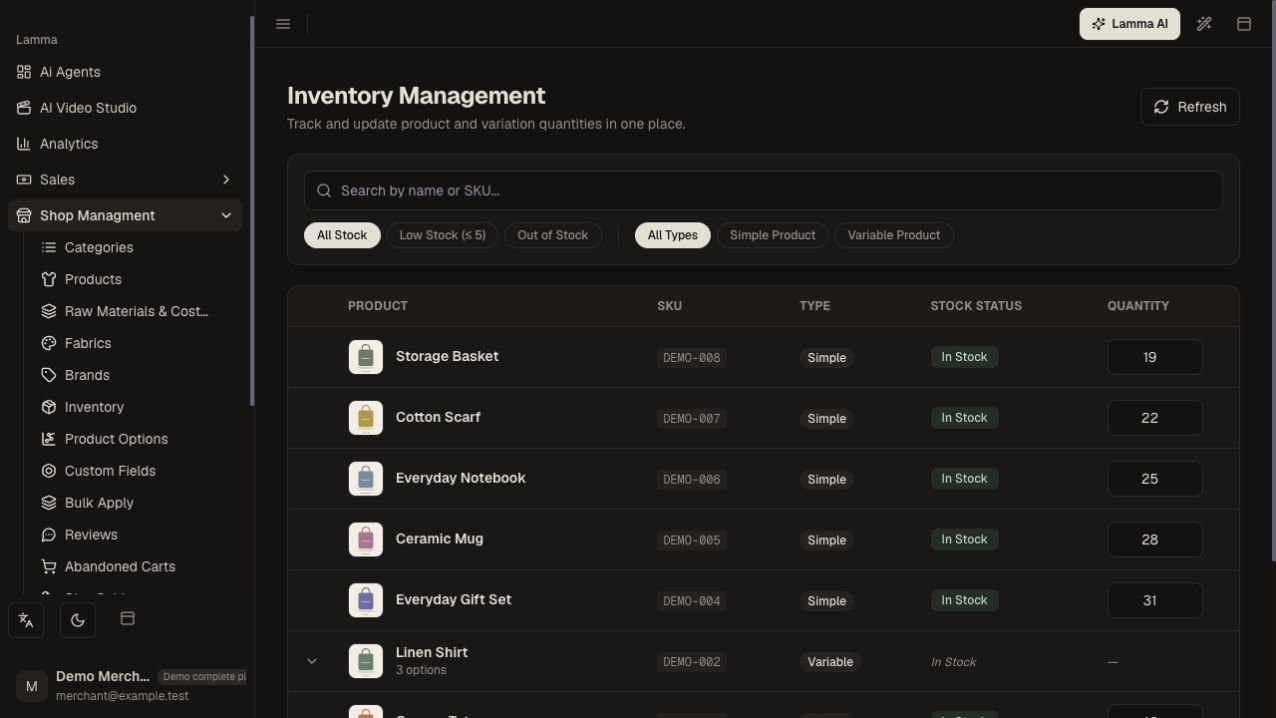
Step 3 — Find the product or variant SKU and update its quantity and availability through Inventory.Demonstration store · sample data. Available features may differ by plan or rollout.View full-size screenshot ↗ Review Store Settings → Products for out-of-stock display, backorders and low-stock behavior.
Check the storefront and a cart with the intended quantity.
For ERP-controlled stock, update the source system and verify synchronization instead of repeatedly overwriting local values.
What to check afterward
The storefront offers the quantities and combinations your stock settings allow.
If something does not work
A published product can still be unavailable because of stock settings. Bundles depend on their component quantities. Integration delays should be checked in the integration screen.
Still need help? Contact Lamma support with your store, the affected record and the exact error. Keep passwords and API keys private.