
Customize product page content
Add product specifications and page sections without changing the product itself.
Access depends on your current plan, permissions and store configuration.
Before you start
Open an existing product and prepare its specifications or supporting content.
Open the relevant dashboard screen ↗Steps
Edit the product descriptions and specifications in the product editor.
Use the offered specification templates for repeated fields.
Open Page Sections to add or arrange the supported content sections.
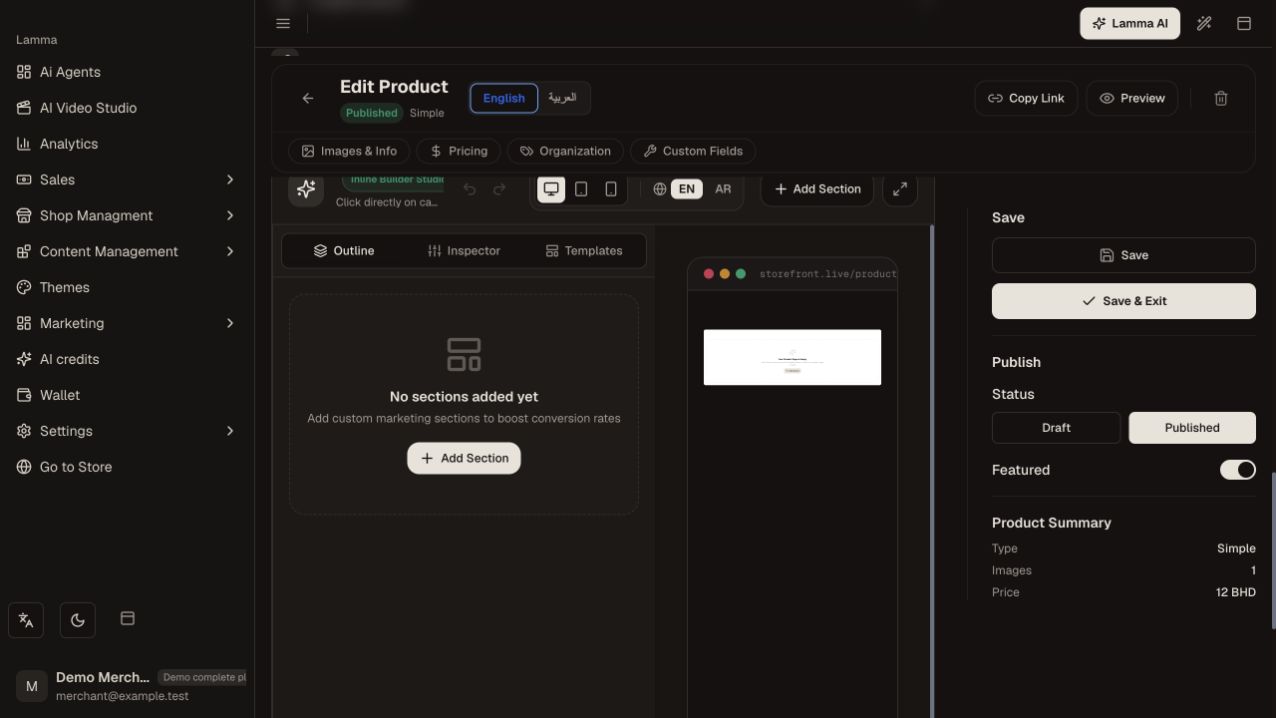
Step 3 — Open Product Landing Sections and choose Add Section to begin building the product content.Demonstration store · sample data. Available features may differ by plan or rollout.View full-size screenshot ↗ Review the draft in the editor and save the sections through the provided save action.
Open the actual product page and check content order, mobile reading and purchase controls.
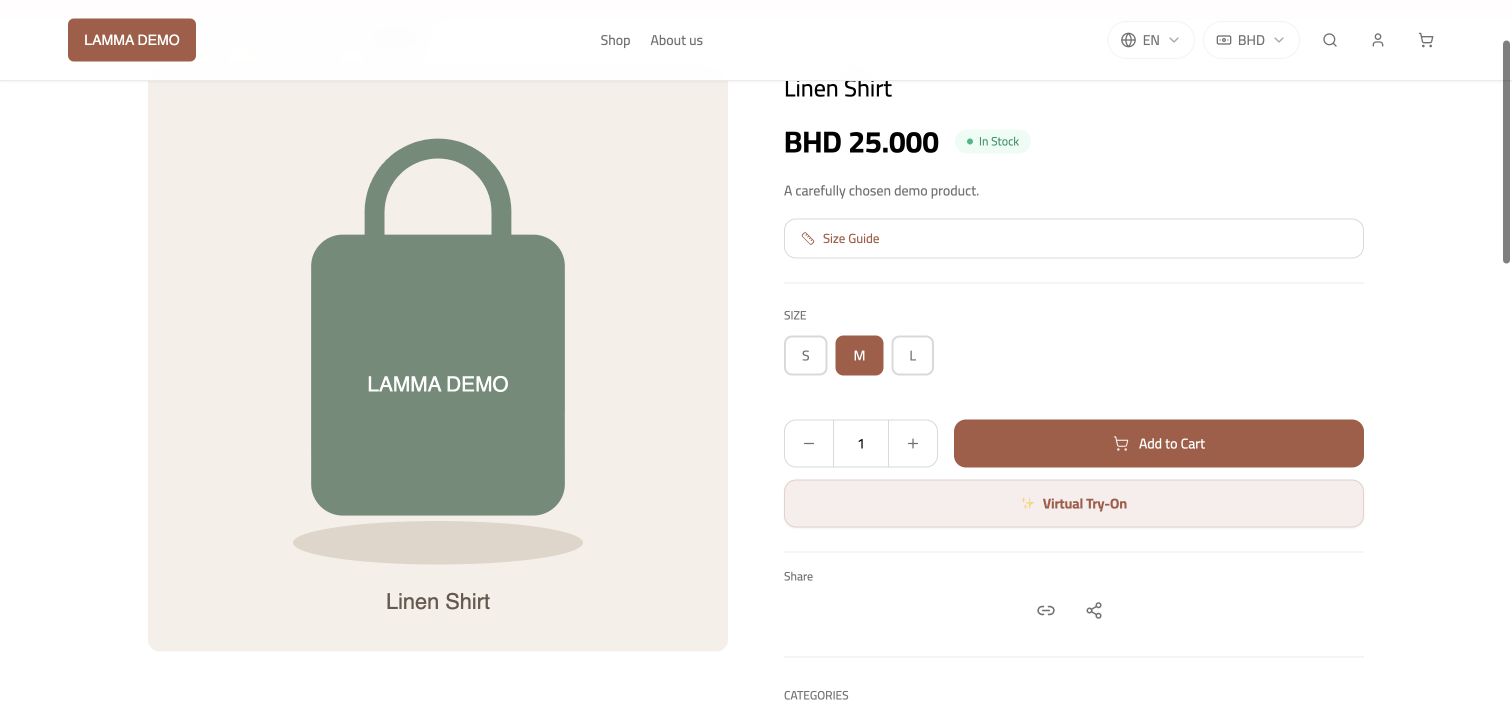
Step 5 — Check the published product description, images and purchase controls on the storefront.Demonstration store · sample data. Available features may differ by plan or rollout.View full-size screenshot ↗
What to check afterward
The product displays its saved supporting content alongside its commerce information.
If something does not work
An unsaved editor draft is not published content. Theme presentation can vary; check the actual storefront instead of assuming every theme uses identical geometry.
Still need help? Contact Lamma support with your store, the affected record and the exact error. Keep passwords and API keys private.