
Preview and customize a theme
Adjust a storefront theme while protecting your existing brand design.
Access depends on your current plan, permissions and store configuration.
Before you start
Record your current theme and important settings before making design changes.
Open the relevant dashboard screen ↗Steps
Open Themes and inspect the available themes and your current selection.
Use the preview/edit actions offered for the theme you want to review.
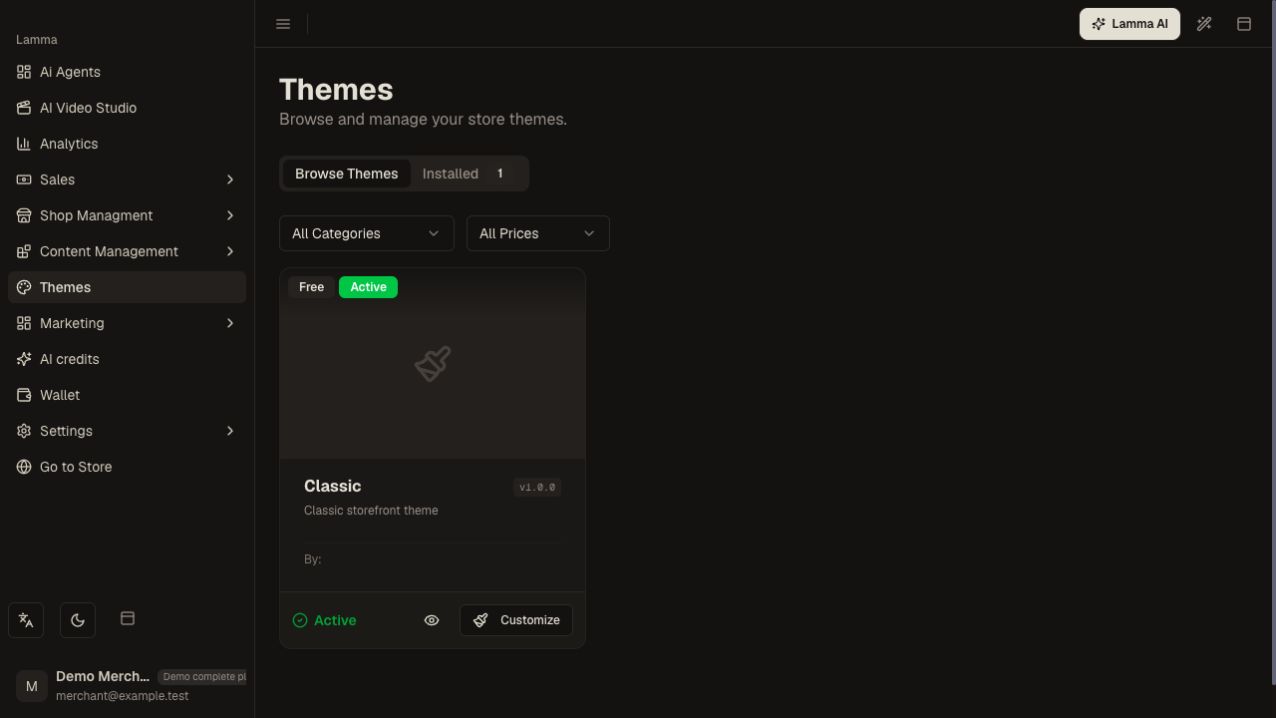
Step 2 — Identify the current theme and use its preview or edit action before making a design change.Demonstration store · sample data. Available features may differ by plan or rollout.View full-size screenshot ↗ Adjust only the intended colors, fonts, logos, layout settings and content.
Preserve the banner dimensions, crop and section order you want customers to see.
Check desktop and mobile previews, including menus, product cards, cart and footer.
Use the explicit save or activation action shown; verify the live storefront afterward.
What to check afterward
Your chosen changes appear on the storefront with a checked desktop and mobile layout.
If something does not work
Themes intentionally look different. A preview is not proof of activation, and changing a theme can change how saved content is displayed. Return to the previous saved selection if you need to recover.
Still need help? Contact Lamma support with your store, the affected record and the exact error. Keep passwords and API keys private.