
Generate and enhance product images
Use image generation tools and review the result before attaching it.
Access depends on your current plan, permissions and store configuration.
Before you start
Keep original product photos and check the displayed AI credit requirement.
Open the relevant dashboard screen ↗Steps
Open the product image controls and choose a supported generation or enhancement action.
Provide the required source photo and settings.
Check the quoted or displayed credit requirements before starting.
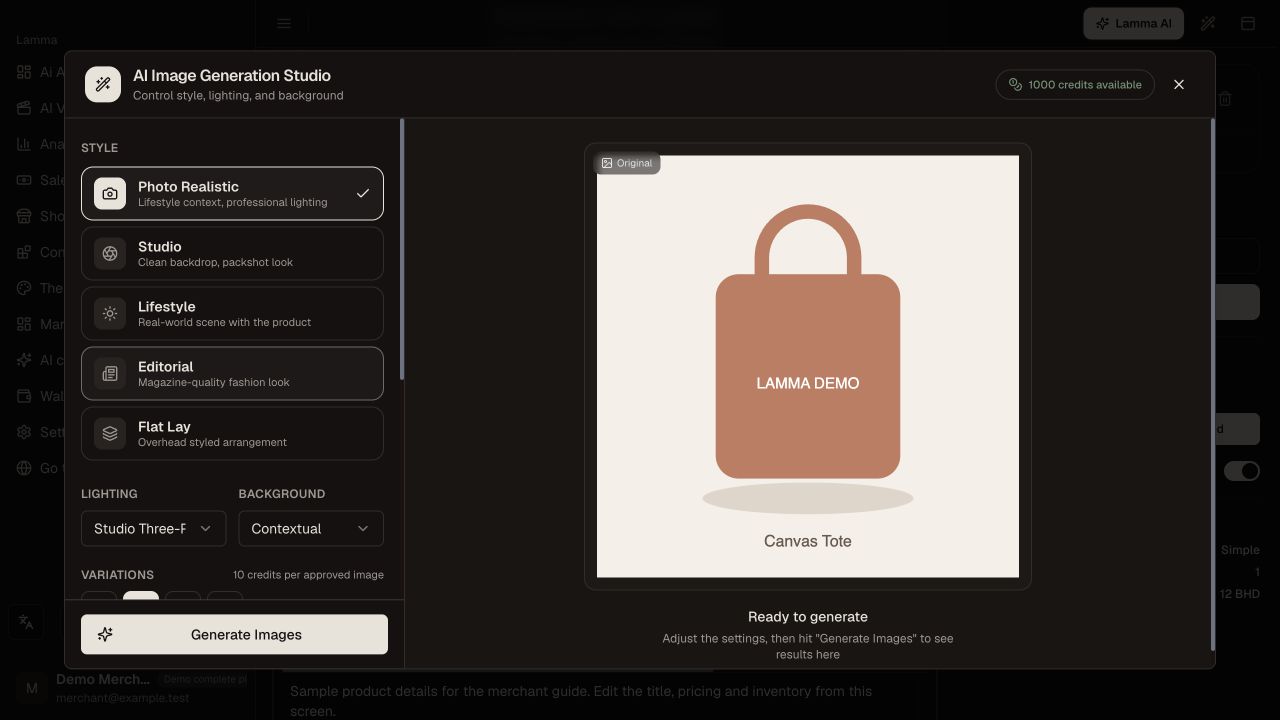
Step 3 — Provide the source photo and inspect the selected image action and credit requirement before starting.Demonstration store · sample data. Available features may differ by plan or rollout.View full-size screenshot ↗ Wait for the generation status instead of submitting repeated requests.
Inspect the product shape, fabric, color, branding and details in the output.
Use the offered approval/attachment action only for a result you accept, then save and verify the storefront gallery.
What to check afterward
An accepted image can be used in the product gallery without losing the original reference.
If something does not work
AI can alter product details. If a job is still running or its outcome is uncertain, inspect its recorded status before trying again. The action shown in your dashboard determines when credits are used.
Still need help? Contact Lamma support with your store, the affected record and the exact error. Keep passwords and API keys private.