
Manage product images and video
Upload, arrange and verify the media customers see.
Access depends on your current plan, permissions and store configuration.
Before you start
Use media you have permission to publish and keep a copy of the originals.
Open the relevant dashboard screen ↗Steps
Open a product and add images through its image section.
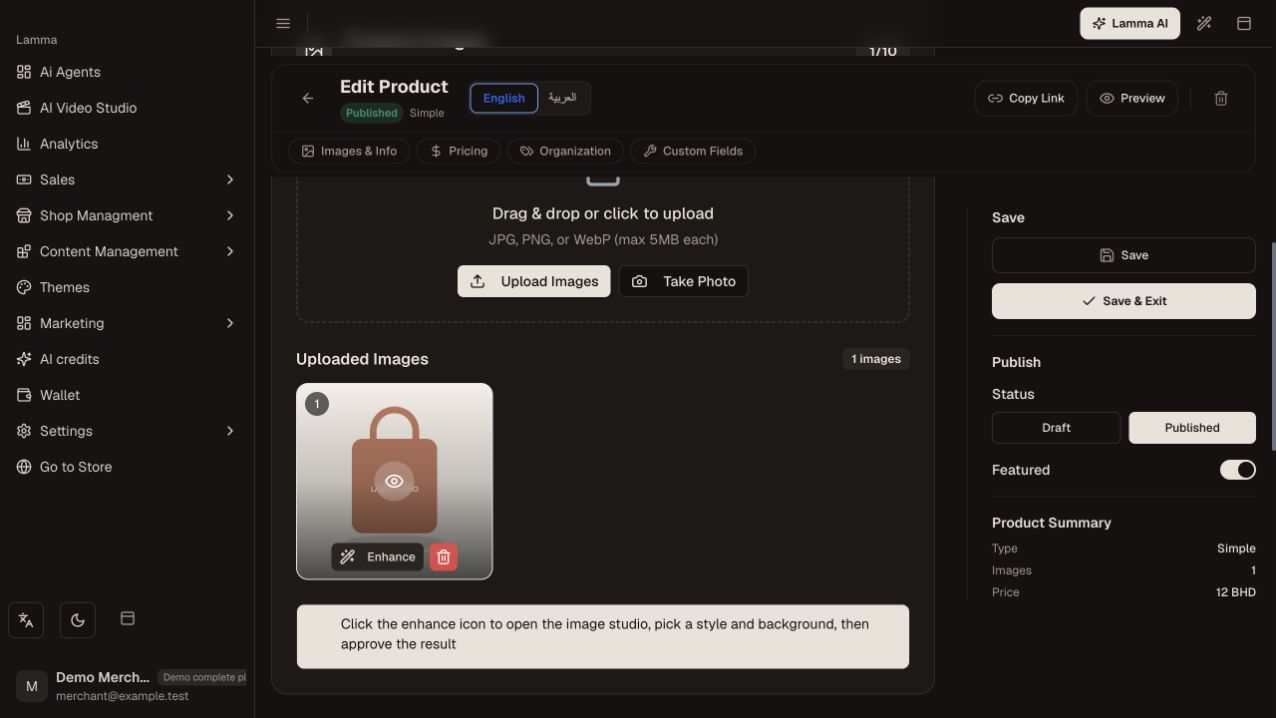
Step 1 — Review the uploaded product photo and use Upload Images or Take Photo to add media.Demonstration store · sample data. Available features may differ by plan or rollout.View full-size screenshot ↗ Choose the main image and arrange the gallery in the intended order.
For variable products, review option or variant galleries separately.
Add supported product video through the video section; wait for the upload to finish before leaving.
Save the product and check the gallery, video playback and mobile crop on the storefront.
What to check afterward
The saved product opens with the intended main image, gallery order and playable video.
If something does not work
If media is absent, check that the upload completed and the product was saved. A preview in the editor does not prove a public customer can load the file.
Still need help? Contact Lamma support with your store, the affected record and the exact error. Keep passwords and API keys private.