
Configure virtual try-on
Let eligible shoppers preview garments using the configured try-on service.
Requires Smart AI Virtual Try-On activation, eligible products, service readiness and VTO tokens.
Before you start
Activate Smart AI Virtual Try-On and check its separate token balance.
Open the relevant dashboard screen ↗Steps
Open the VTO management screen and review the current settings.
Choose whether to allow customer uploads, preset studio models or both.
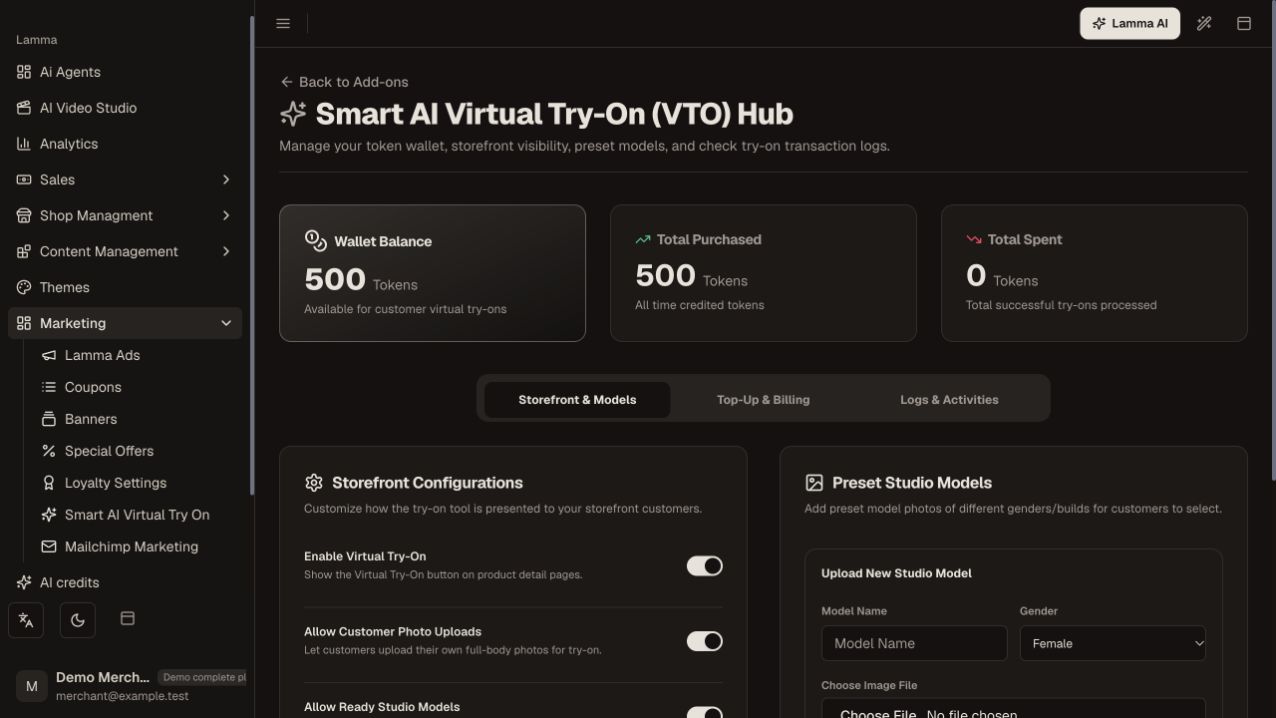
Step 2 — Review the VTO token balance, storefront switch and customer-photo upload setting before configuring models and limits.Demonstration store · sample data. Available features may differ by plan or rollout.View full-size screenshot ↗ Configure the daily customer limit and manage approved preset models.
Review available token packages and balance before enabling customer use.
Open an eligible garment on the storefront and test the supported try-on flow.
Review session history and token usage in the management screen.
What to check afterward
Eligible products offer the configured preview experience while tokens and service access are available.
If something does not work
A try-on is a visual simulation, not a fit guarantee. VTO tokens are separate from general AI credits. Check the live screen for current allowances; do not assume a fixed number of free starter tokens.
Still need help? Contact Lamma support with your store, the affected record and the exact error. Keep passwords and API keys private.