
Translate product and store content
Translate supported content and review the target language before publication.
Access depends on your current plan, permissions and store configuration.
Before you start
Enable the target store language and check your AI credit balance.
Open the relevant dashboard screen ↗Steps
Use the offered translate action for a product or the available bulk translation flow.
Choose the source and target language as requested by the screen.
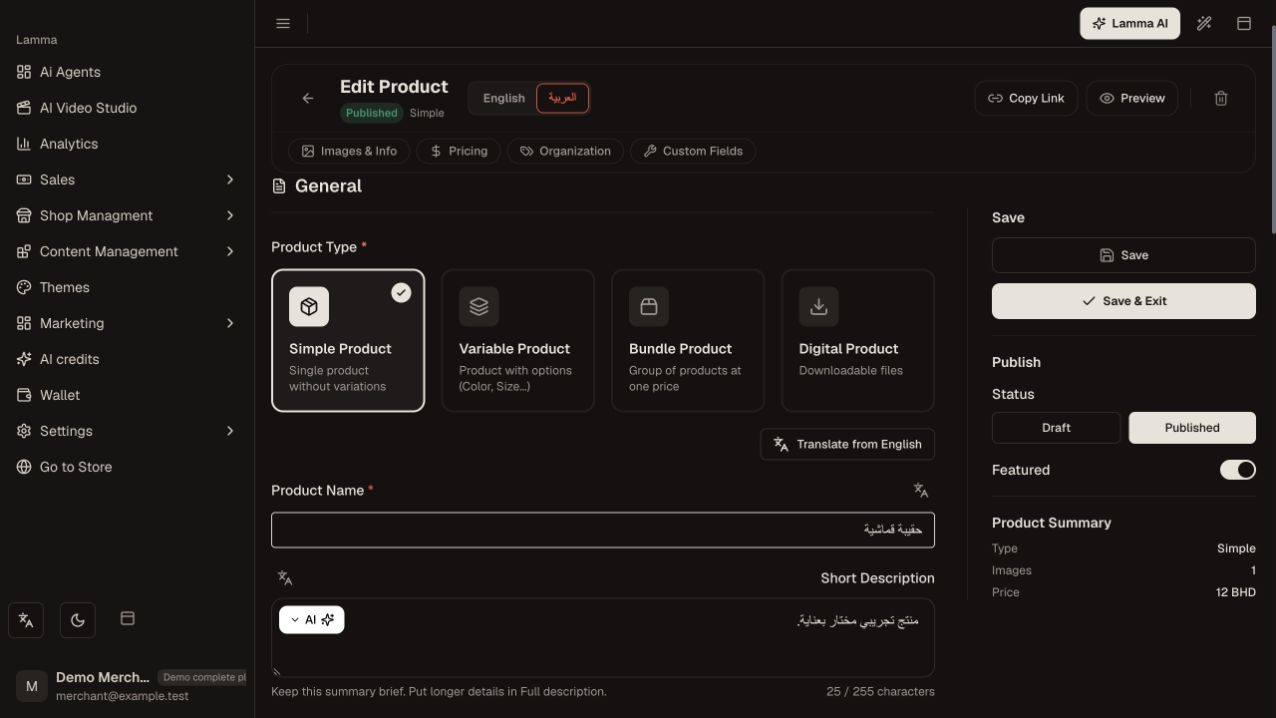
Step 2 — Select the product language tab and use the Translate from action or field translation buttons for that language.Demonstration store · sample data. Available features may differ by plan or rollout.View full-size screenshot ↗ Start the batch once and monitor progress.
Review completed items and any reported failures.
Check product names, descriptions, units, menus, pages and category labels in the target language.
Save or publish through the relevant form when required and inspect the storefront language switch.
What to check afterward
Supported content has reviewed translations in the enabled target language.
If something does not work
Enabling a language does not translate existing content by itself. A batch may finish with individual failures; check the results and avoid rerunning an active batch.
Still need help? Contact Lamma support with your store, the affected record and the exact error. Keep passwords and API keys private.