
Storefront & content
Use the announcement bar
Show a short announcement without replacing a homepage banner.
Availability
Access depends on your current plan, permissions and store configuration.
Access depends on your current plan, permissions and store configuration.
Before you start
Prepare a short message and any destination link.
Open the relevant dashboard screen ↗Steps
Open Add-ons and find the Announcement Bar controls when available.
Enable the bar and enter the message using the fields shown.
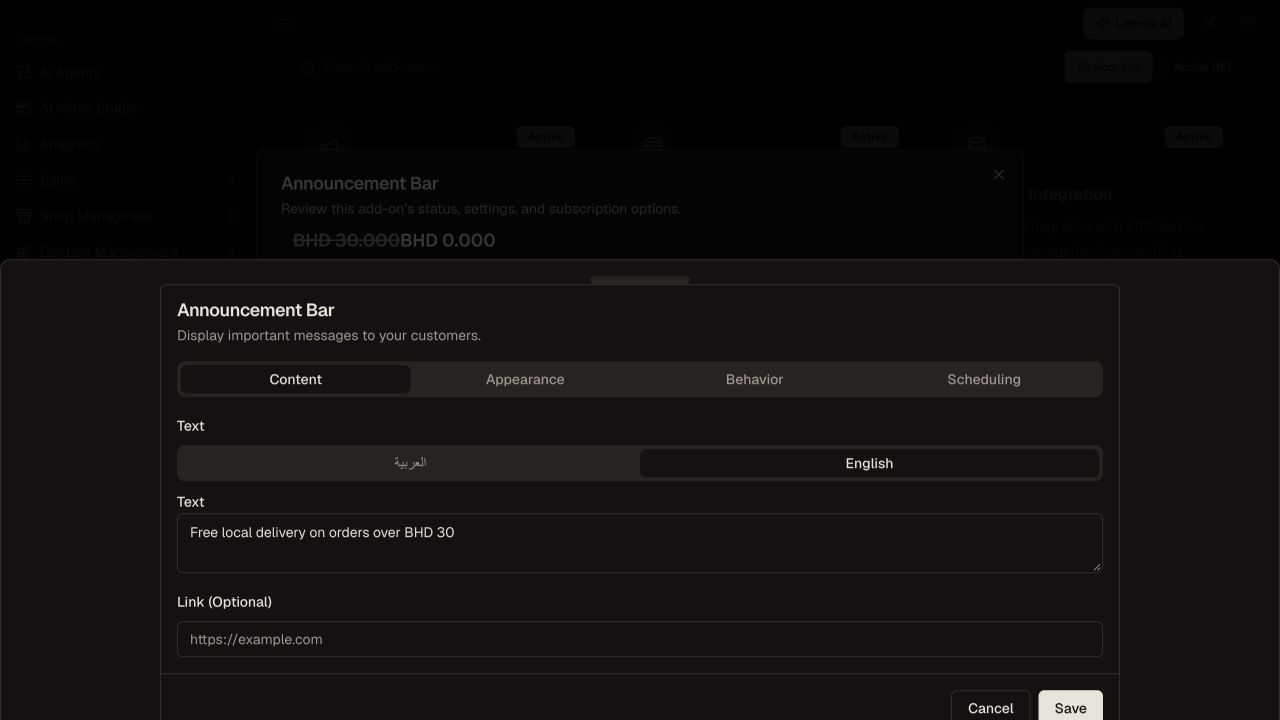
Step 2 — Enter the announcement message in the Content tab and add an optional destination link.Demonstration store · sample data. Available features may differ by plan or rollout.View full-size screenshot ↗ Configure the offered link, color or visibility settings.
Save and check the storefront header on desktop and mobile.
Remove or update expired offers promptly.
What to check afterward
The active announcement appears in the location supported by the storefront.
If something does not work
If it does not appear, check the enabled state, saved content and theme behavior. Keep the message short enough to remain readable on mobile.
Still need help? Contact Lamma support with your store, the affected record and the exact error. Keep passwords and API keys private.