
Create and manage banners
Publish a banner with the intended size, crop, text and destination.
Access depends on your current plan, permissions and store configuration.
Before you start
Prepare an image or supported video and the page the banner should open.
Open the relevant dashboard screen ↗Steps
Open Banners and create a banner or choose an available template.
Add media, text, link and visibility settings.
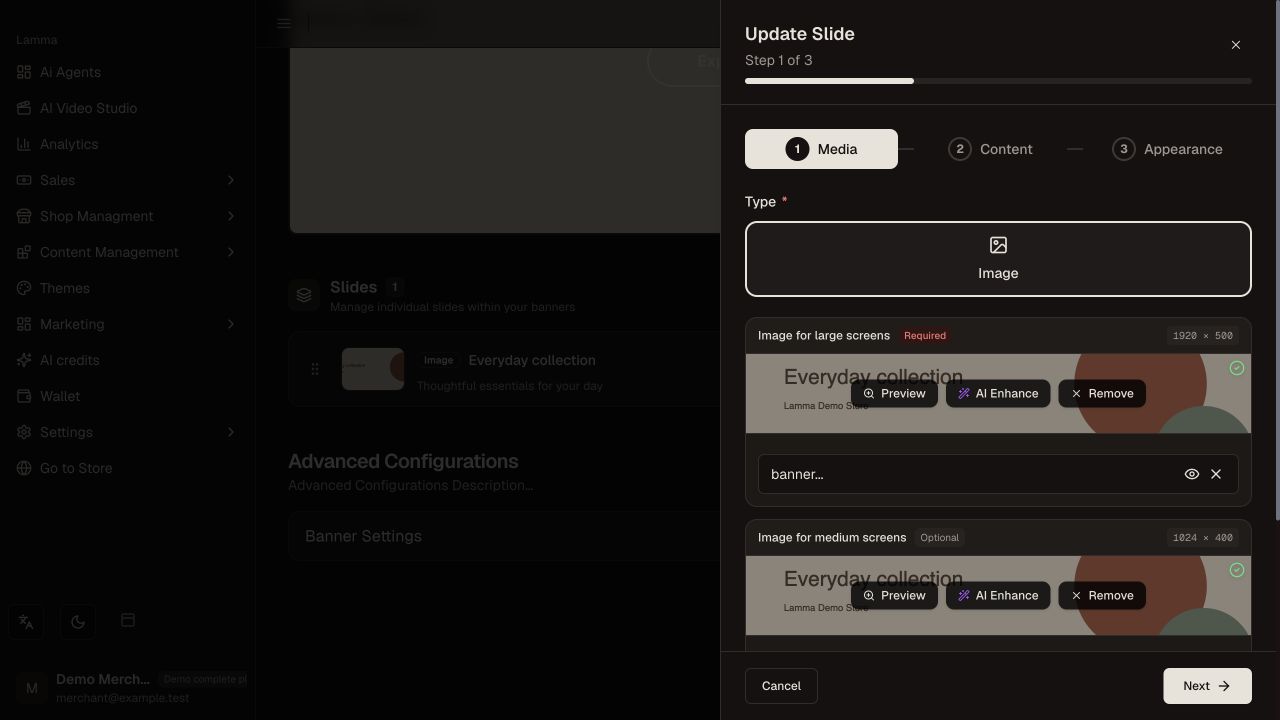
Step 2 — Review the banner image and screen-specific upload slots in the Media step before editing content and appearance.Demonstration store · sample data. Available features may differ by plan or rollout.View full-size screenshot ↗ Review the height, image fit/crop, overlay and playback controls offered.
Save and place the banner through the relevant theme or homepage section settings.
Check both desktop and mobile; verify text contrast, controls and the destination link.
What to check afterward
Customers see the intended banner and its link opens the correct page.
If something does not work
A wide desktop image may crop heavily on mobile. Adjust the saved fit or mobile setting if offered, and retain the original media so you can restore it.
Still need help? Contact Lamma support with your store, the affected record and the exact error. Keep passwords and API keys private.