
Connect Bizaldo
Configure the available Bizaldo integration and review import/export jobs.
Access depends on your current plan, permissions and store configuration.
Before you start
Have the account configuration required by the Bizaldo management form.
Open the relevant dashboard screen ↗Steps
Find Bizaldo in the add-on catalog returned for your store and open its configuration.
Enter the required connection values and save.
Run the connection test.
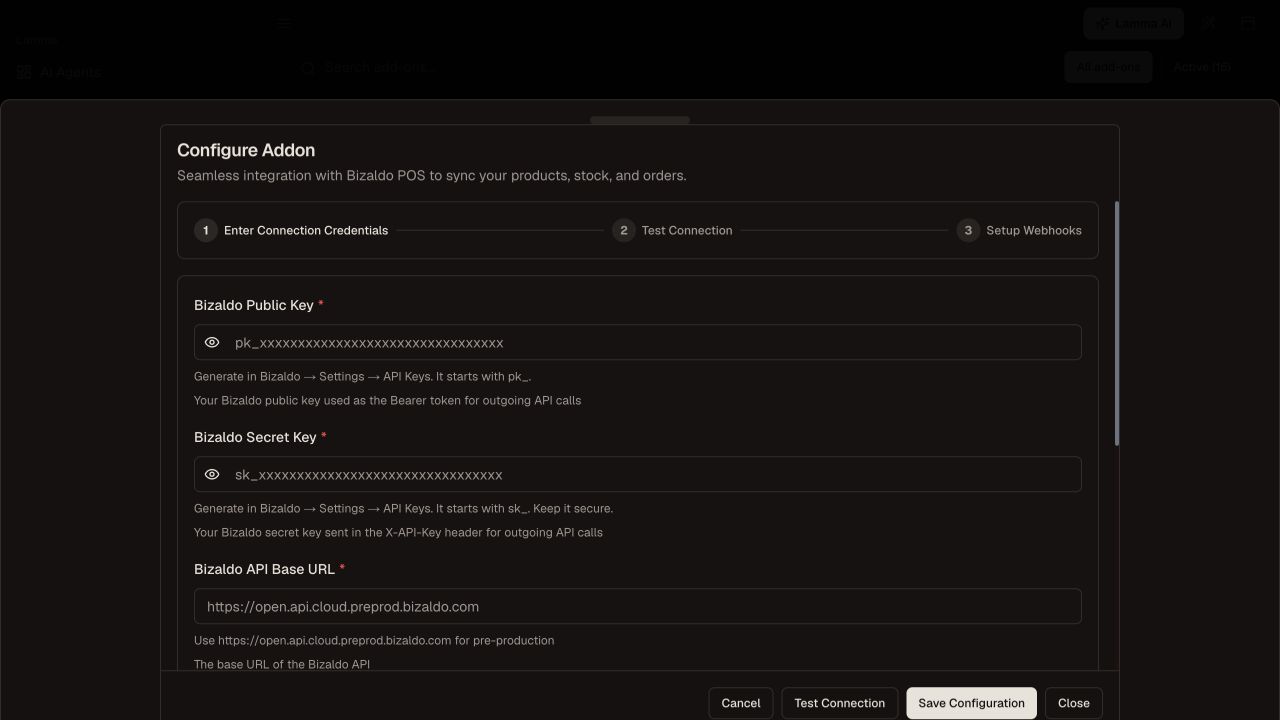
Step 3 — Open Bizaldo management, enter the required values and run the connection test offered.Demonstration store · sample data. Available features may differ by plan or rollout.View full-size screenshot ↗ Configure the provided webhook secret/endpoint through the supported setup flow.
Start a small import or export and follow its recorded progress.
Inspect the resulting products and an authorized synchronization example before using it for the full catalog.
What to check afterward
You have a tested connection and a reviewed job result for the selected integration path.
If something does not work
Do not assume every field is bidirectional or that a connection test proves live sync. Regenerating a webhook secret also requires updating the external sender.
Still need help? Contact Lamma support with your store, the affected record and the exact error. Keep passwords and API keys private.