
Connect Microsoft Clarity
Configure the Clarity add-on for the storefront project you control.
Access depends on your current plan, permissions and store configuration.
Before you start
Have an enabled Clarity add-on and access to the intended Microsoft Clarity project.
Open the relevant dashboard screen ↗Steps
Open the Microsoft Clarity add-on management screen.
Read the configuration field labels and enter the requested project value.
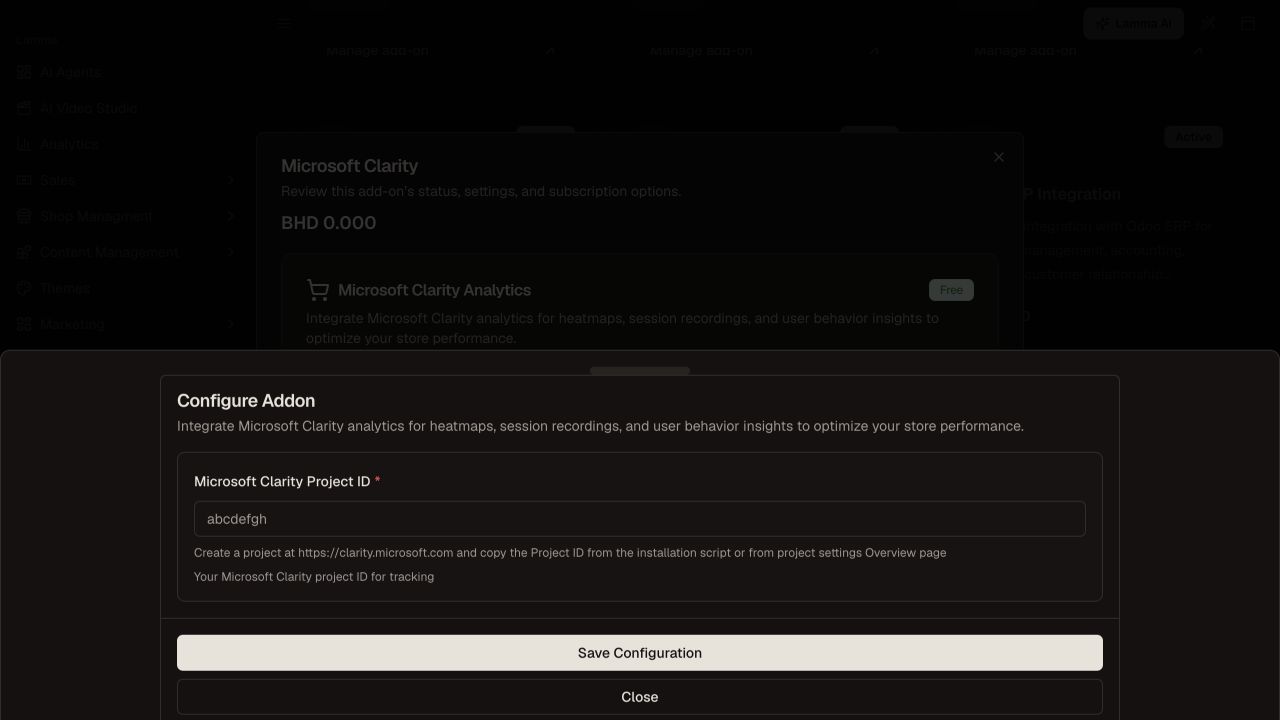
Step 2 — Read the Clarity field label and enter the matching project value before saving.Demonstration store · sample data. Available features may differ by plan or rollout.View full-size screenshot ↗ Save and verify that the add-on shows a configured, active state.
Open the storefront and inspect the matching project in Clarity after its processing delay.
Review the project’s privacy and masking configuration before using session data.
Avoid installing a duplicate copy through Custom Scripts.
What to check afterward
The active integration uses the intended project configuration.
If something does not work
The Lamma configuration state is not proof that Clarity has processed a session. Confirm the project identifier, browser restrictions and provider diagnostics.
Still need help? Contact Lamma support with your store, the affected record and the exact error. Keep passwords and API keys private.