
Review customer records
Find customer details and understand their order history.
Access depends on your current plan, permissions and store configuration.
Before you start
Use customer information only for the business purpose for which it was collected.
Open the relevant dashboard screen ↗Steps
Open Sales → Customers and use search or filters to find the record.
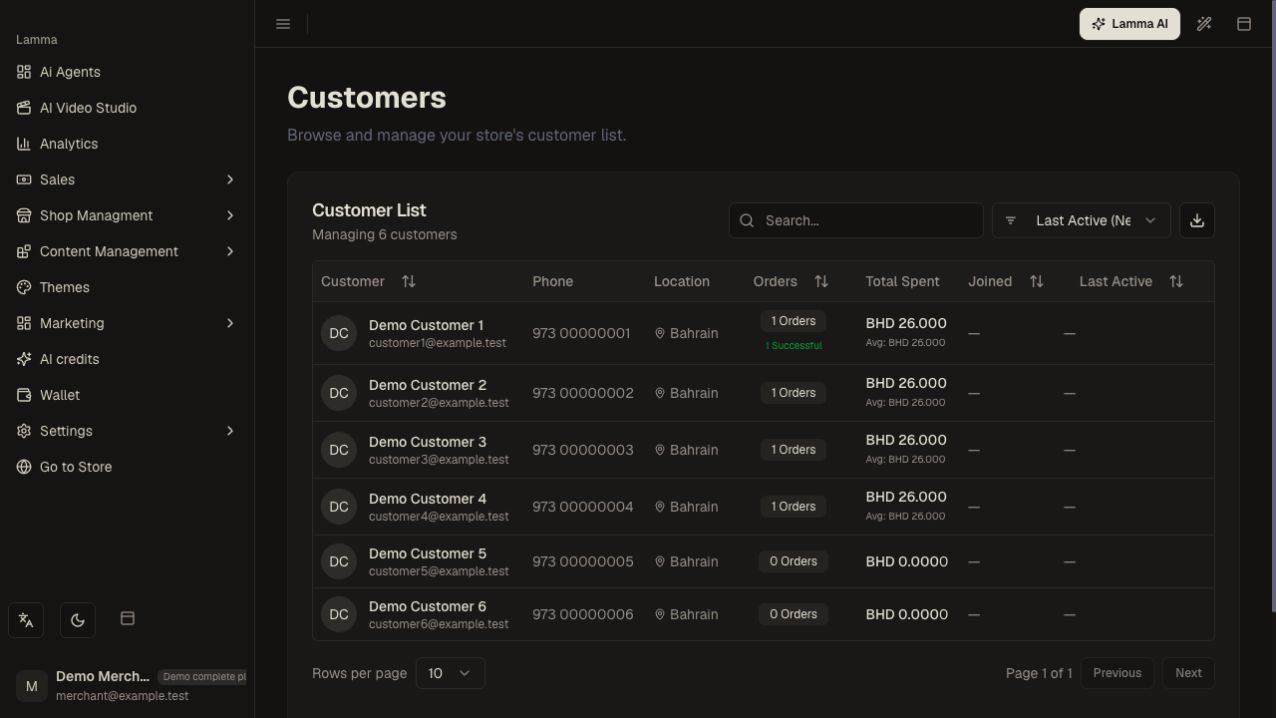
Step 1 — Search for the customer and review the contact details, order count and recent activity shown in the list.Demonstration store · sample data. Available features may differ by plan or rollout.View full-size screenshot ↗ Review the customer row for contact information, order count and activity dates. Use the order list to find and open a specific related order.
Compare the selected store and customer before acting on an order.
Use the order screen for fulfillment and payment details.
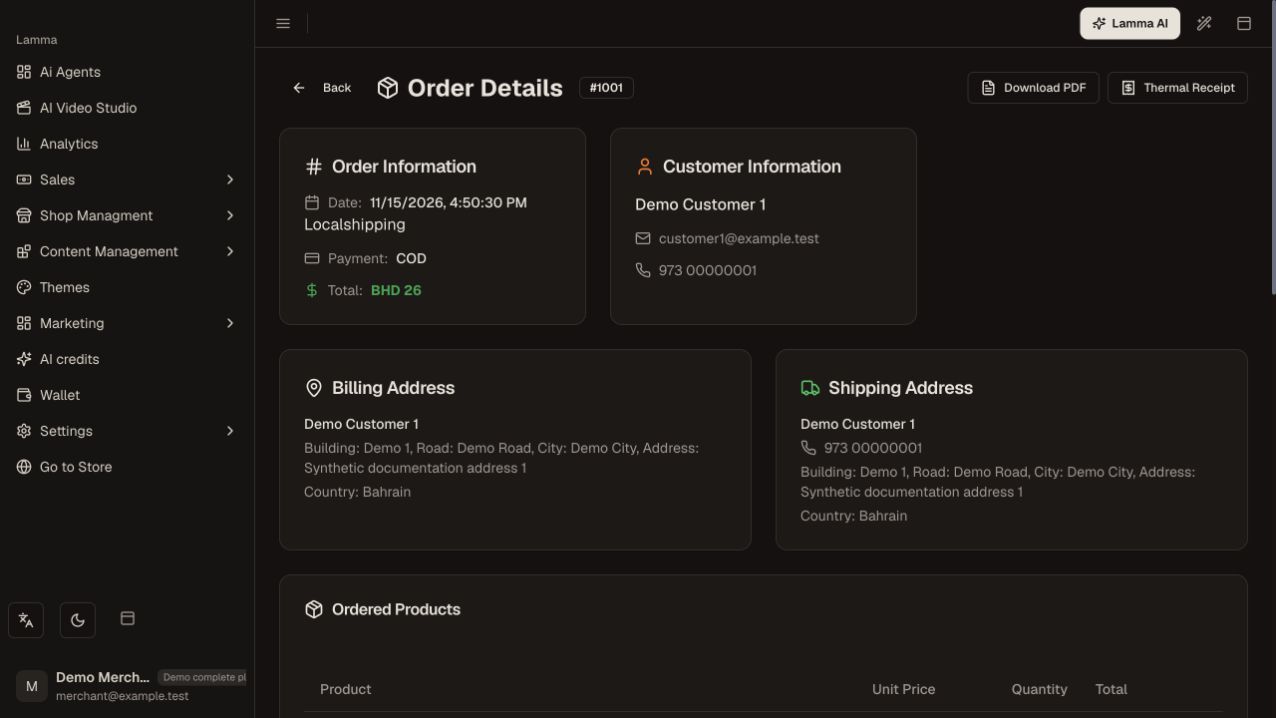
Step 4 — Open the relevant order separately to review its customer contact, payment method and delivery address.Demonstration store · sample data. Available features may differ by plan or rollout.View full-size screenshot ↗ Use the marketing integration consent information before adding someone to a promotional audience.
What to check afterward
You can identify the customer and locate their relevant order records.
If something does not work
A customer record or purchase does not automatically mean newsletter consent. Duplicate-looking records can use different contact details; verify before contacting the wrong person.
Still need help? Contact Lamma support with your store, the affected record and the exact error. Keep passwords and API keys private.