
Connect Mailchimp and recover carts
Synchronize catalog and commerce data while respecting newsletter consent.
Access depends on your current plan, permissions and store configuration.
Before you start
Activate the Mailchimp add-on and have access to the intended Mailchimp account.
Open the relevant dashboard screen ↗Steps
Open the Mailchimp setup screen and authorize the account through its connection flow.
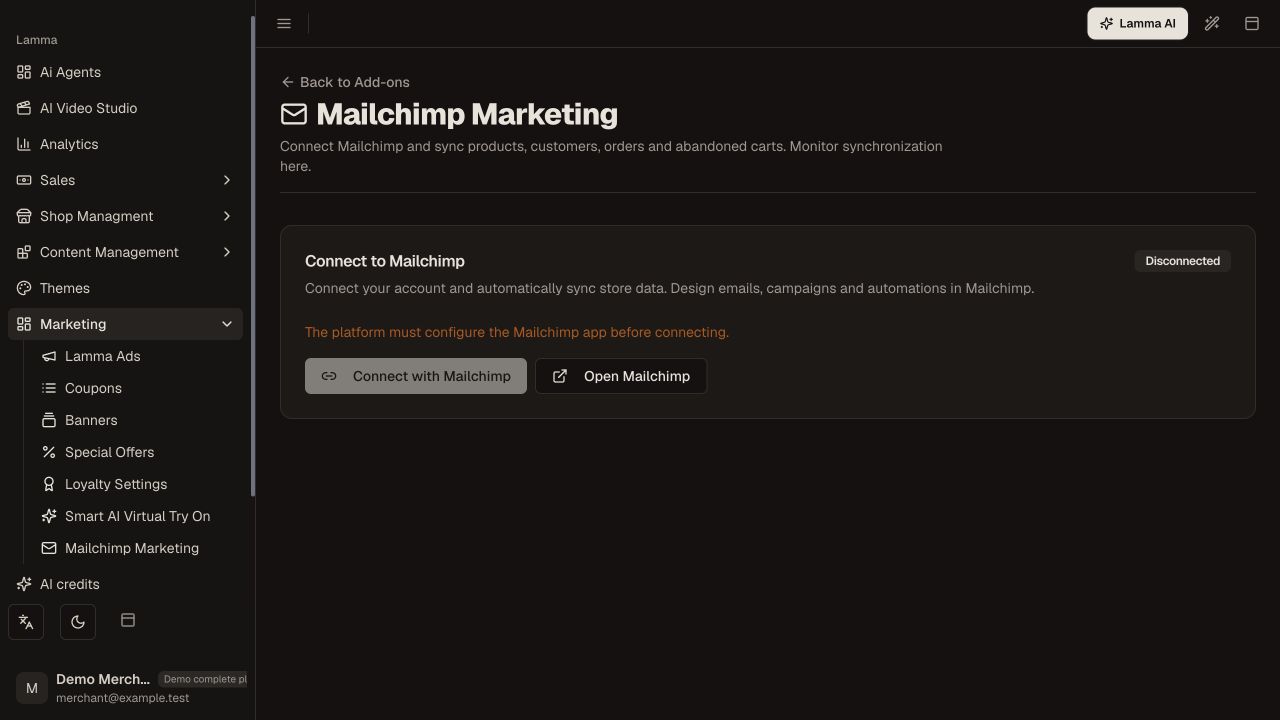
Step 1 — Open Mailchimp setup and check connection readiness; the platform must configure the Mailchimp app before this demo can connect.Demonstration store · sample data. Available features may differ by plan or rollout.View full-size screenshot ↗ Select an existing audience or use the offered create-audience option.
Save the connection and check its health.
Start the historical sync when needed and monitor its progress/errors.
Verify products, customers, orders and abandoned carts in Mailchimp.
Create and manage campaigns or recovery automations in Mailchimp, and review consent before sending.
What to check afterward
The chosen audience receives the supported commerce sync and reports its health.
If something does not work
Synchronizing a customer is not the same as subscribing them to marketing. An integration connection test does not prove a campaign was sent or an automation is active.
Still need help? Contact Lamma support with your store, the affected record and the exact error. Keep passwords and API keys private.