
Sell a digital download
Attach a digital file and check the customer download journey.
Access depends on your current plan, permissions and store configuration.
Before you start
Have the deliverable file ready and confirm the digital-product controls are available.
Open the relevant dashboard screen ↗Steps
Create or edit the product and select the digital type offered in the product form.
Enter the name, description, price and publication settings.
Upload and attach the digital file through the digital section. Wait for completion before saving.
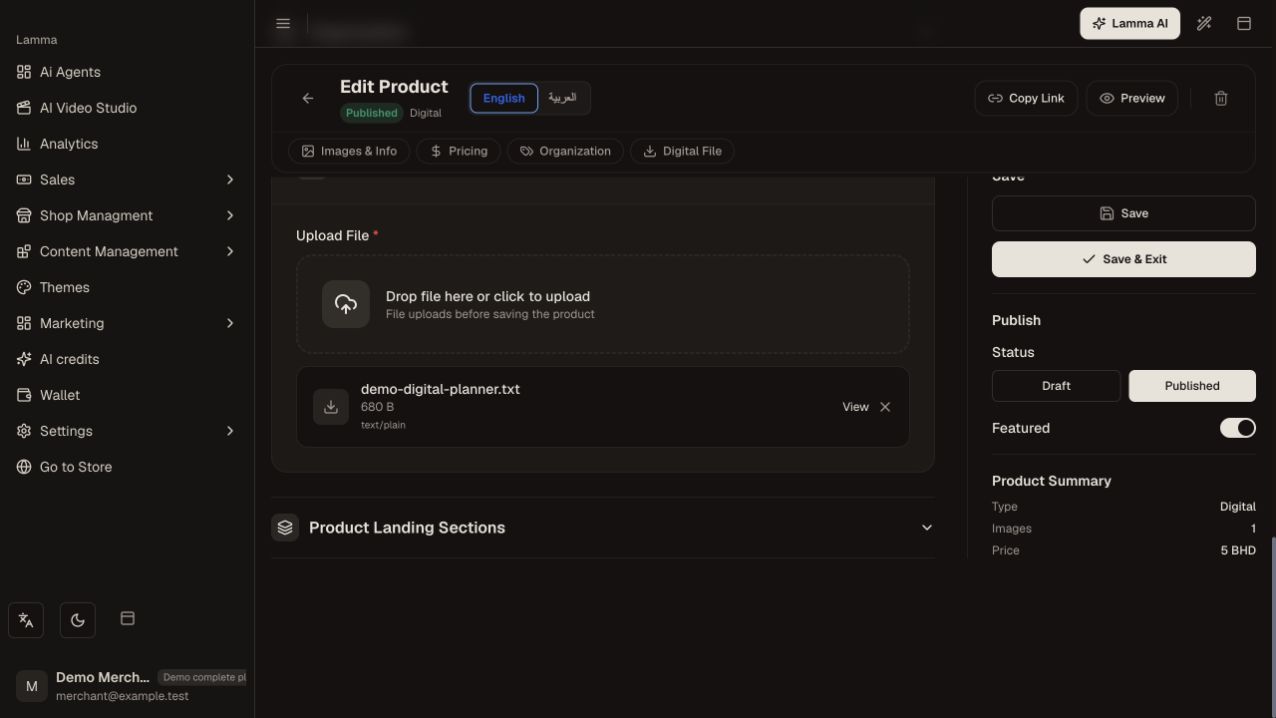
Step 3 — Attach the deliverable in the digital section and wait for upload completion before saving.Demonstration store · sample data. Available features may differ by plan or rollout.View full-size screenshot ↗ Publish and place an authorized test order.
Verify the resulting download access after the required order or payment conditions are met.
What to check afterward
Eligible purchasers can access the attached file through the order download flow.
If something does not work
An image in the gallery is not the downloadable file. If access fails, check the attached media and order/payment state; do not share a private storage URL as a workaround.
Still need help? Contact Lamma support with your store, the affected record and the exact error. Keep passwords and API keys private.