
Connect ERPNext
Configure the ERPNext account, warehouse scope and synchronization workflow.
Access depends on your current plan, permissions and store configuration.
Before you start
Have authorized ERPNext API access and the intended company and warehouse names.
Open the relevant dashboard screen ↗Steps
Open ERPNext management and enter the instance URL, API key and API secret.
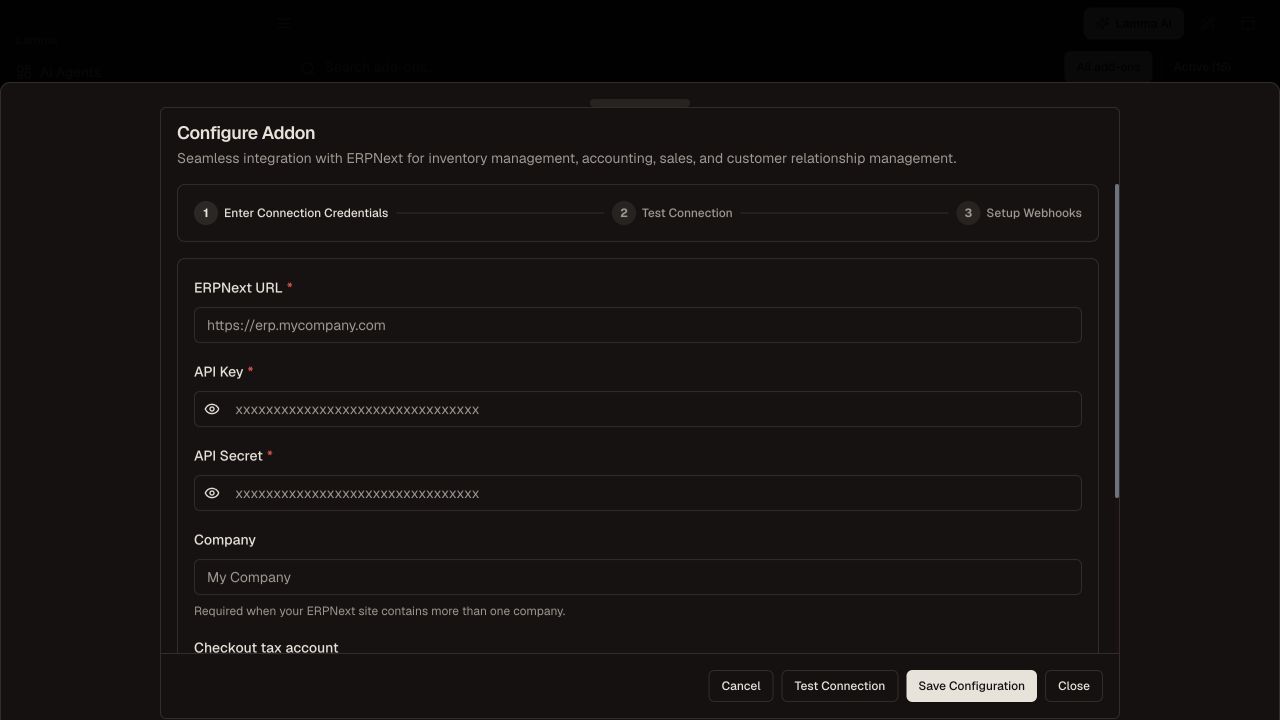
Step 1 — Enter the ERPNext instance URL and protected API credentials, then review the company field for your account.Demonstration store · sample data. Available features may differ by plan or rollout.View full-size screenshot ↗ Select the company and warehouse scope offered by the configuration.
Save and test the connection.
Provision or configure the webhooks through the setup controls.
Run a small import/export and inspect its completed and failed results.
Check a linked product, stock update and authorized order in both systems, including address mapping.
What to check afterward
Selected catalog and transaction paths can be checked against the configured ERPNext scope.
If something does not work
Warehouse scope changes what stock is synchronized. Do not create duplicate ERP items to work around a linkage problem. A received webhook and successful downstream processing are different outcomes.
Still need help? Contact Lamma support with your store, the affected record and the exact error. Keep passwords and API keys private.