
Find your way around Lamma
Understand the merchant dashboard, your storefront and the tools used to run your business.
Access depends on your current plan, permissions and store configuration.
Before you start
Sign in to the merchant account that owns or can access your store.
Steps
Use AI Agents for task assistance, and the dashboard menus for direct editing.
Open Shop Management for products, categories, inventory and customers. Use Marketing for promotions and growth tools.
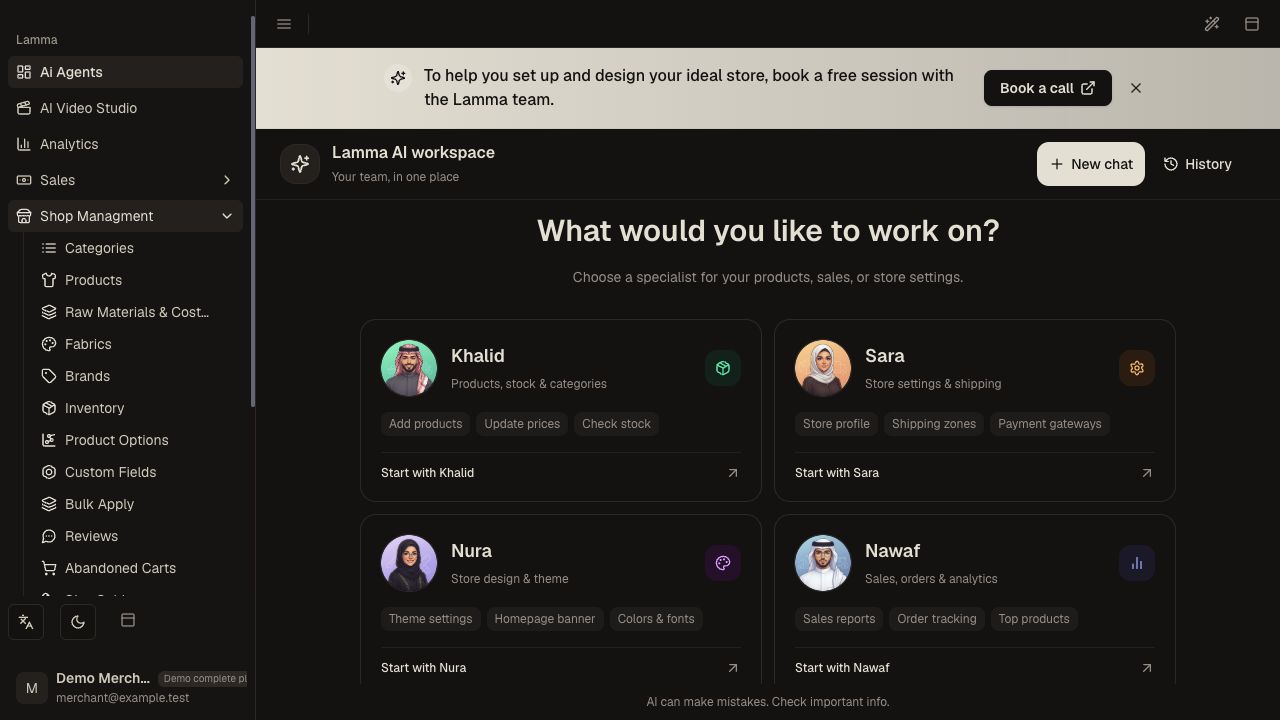
Step 2 — Expand Shop Management in the sidebar to find products, categories, inventory and the related catalog tools.Demonstration store · sample data. Available features may differ by plan or rollout.View full-size screenshot ↗ Open Settings for store details, checkout, delivery, payments, languages and currency.
Use your storefront link to see the shopping experience; this is separate from the dashboard.
Review the plan or add-on message when a screen is unavailable.
What to check afterward
You can locate the screen for a task and check the customer-facing result after saving.
If something does not work
A missing menu does not prove a feature is broken. Check your subscription and add-on access, then contact support with the screen name.
Still need help? Contact Lamma support with your store, the affected record and the exact error. Keep passwords and API keys private.