
Create and track a shipment
Turn an eligible order into a courier shipment and obtain its label.
Access depends on your current plan, permissions and store configuration.
Before you start
Verify the order address, phone number, items, weight and payment/COD amount.
Open the relevant dashboard screen ↗Steps
Open the order and its shipment controls.
Select an available provider and service. Review sender and recipient details.
Review package information, rate and COD settings before submitting.
Create the shipment once and wait for the result.
Download its label and use the provider-specific tracking or pickup controls when offered.
For cancellation or regeneration, inspect the existing shipment status first and use the supported action.
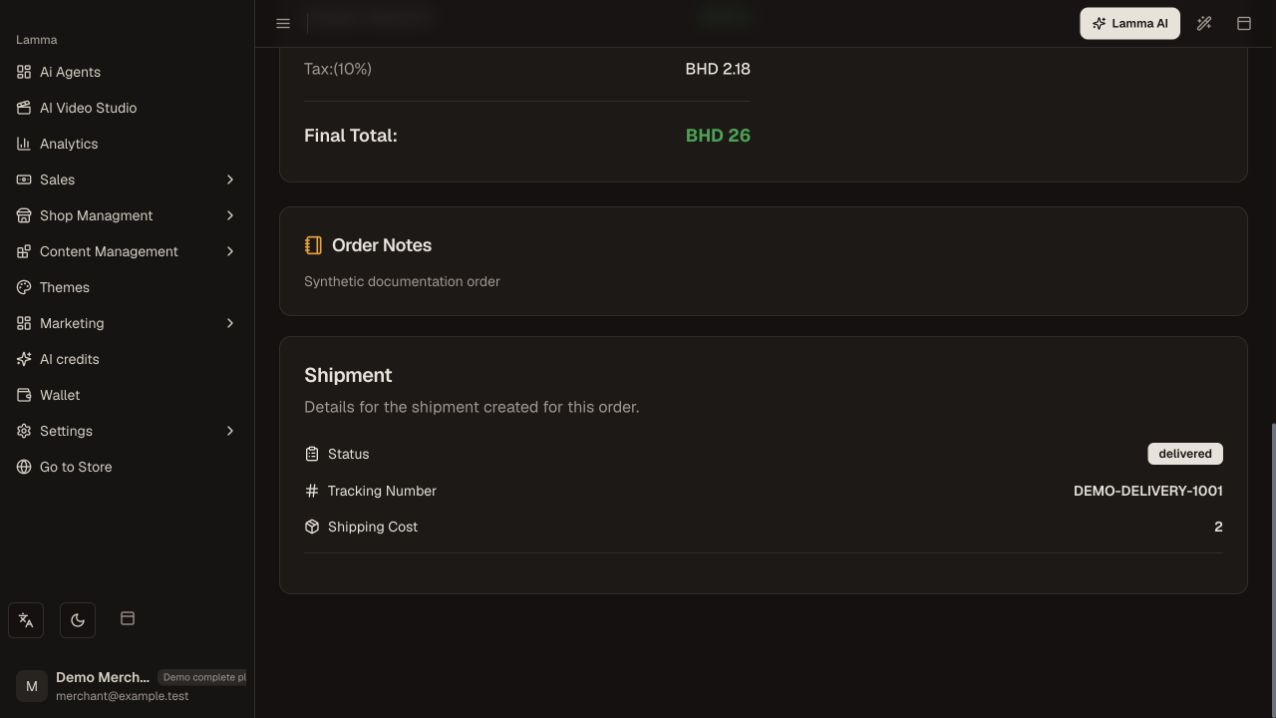
Step 6 — For an existing shipment, review its recorded delivery status, tracking reference and shipping cost before taking another action.Demonstration store · sample data. Available features may differ by plan or rollout.View full-size screenshot ↗
What to check afterward
The order records a shipment reference and the available label or tracking information.
If something does not work
If a request times out, check whether a shipment already exists before retrying. Courier cancellation is subject to provider state; changing an order status does not automatically cancel a booked courier.
Still need help? Contact Lamma support with your store, the affected record and the exact error. Keep passwords and API keys private.