
Configure tax display and calculation
Enter your business tax settings and check product and shipping totals.
Access depends on your current plan, permissions and store configuration.
Before you start
Know the tax treatment your business must apply before changing these settings.
Open the relevant dashboard screen ↗Steps
Open Add-ons and the Tax configuration controls.
Review whether tax is enabled and enter the required business registration details and percentage.
Choose the available inclusive/exclusive and shipping-tax settings deliberately.
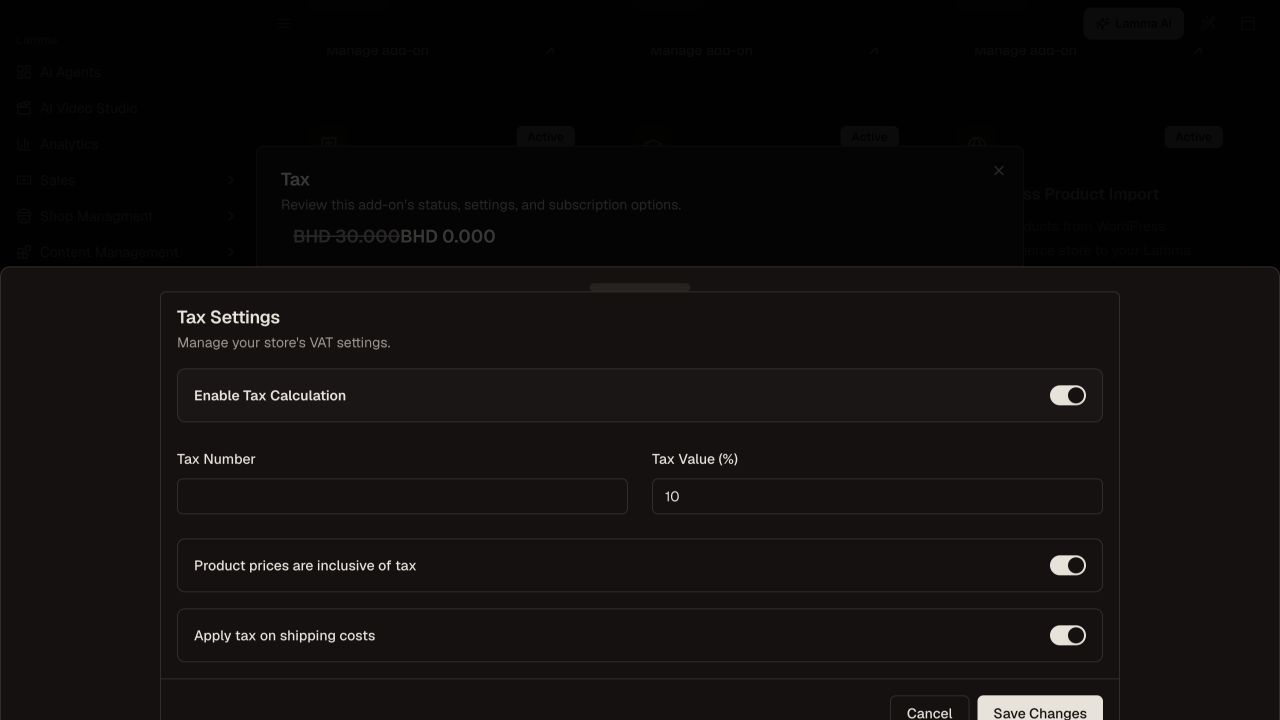
Step 3 — Review tax registration, percentage, inclusive or exclusive pricing and shipping-tax settings.Demonstration store · sample data. Available features may differ by plan or rollout.View full-size screenshot ↗ Save and inspect a product, shipping charge, checkout total and generated invoice.
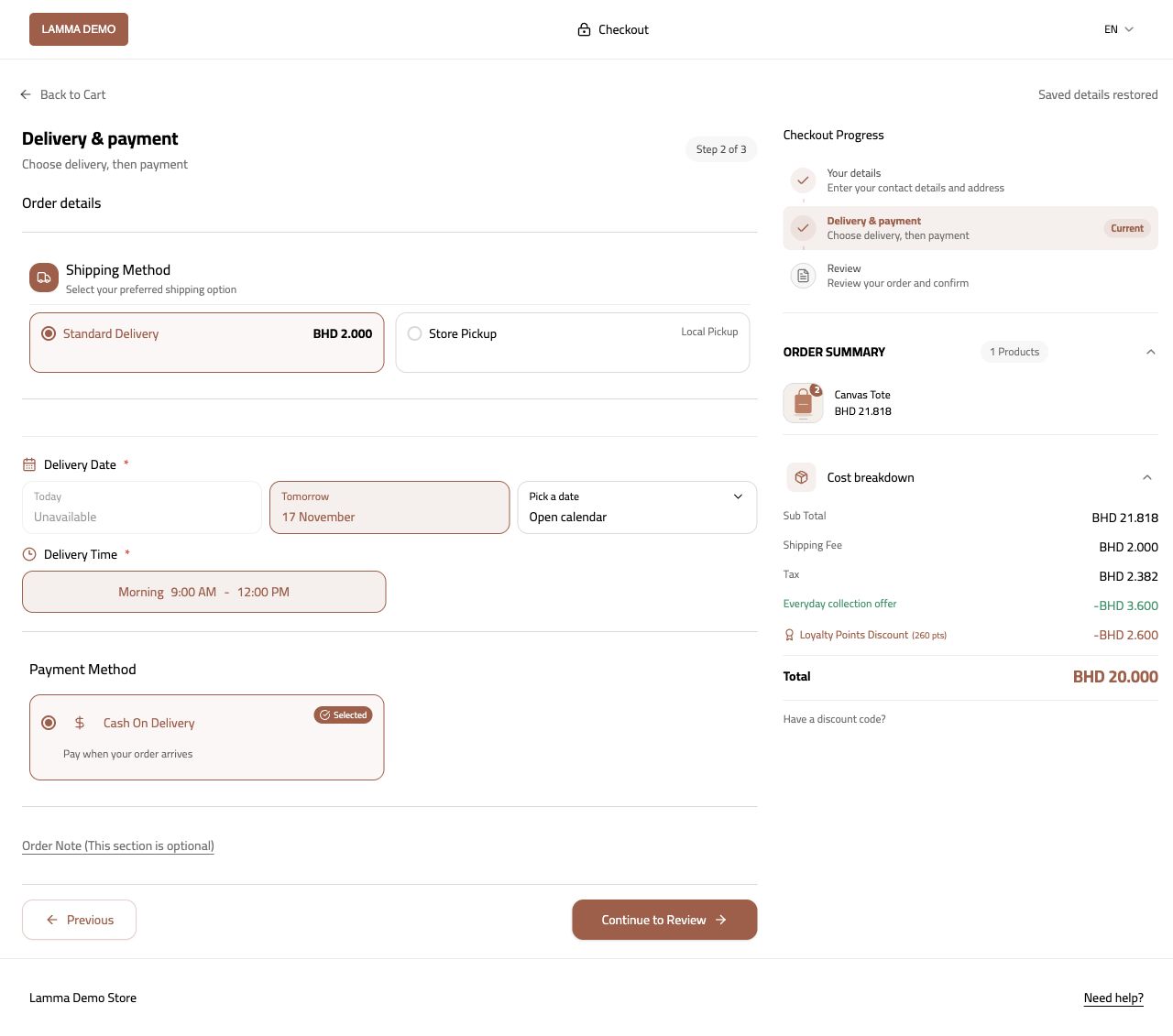
Step 4 — Inspect the configured tax on the actual demo checkout total, including the shipping charge.Demonstration store · sample data. Available features may differ by plan or rollout.View full-size screenshot ↗ Compare an authorized sample order against your expected calculation before taking customer orders.
What to check afterward
Displayed product, shipping and invoice totals reflect the saved configuration.
If something does not work
These controls implement the values you enter; they do not determine your tax obligations. If totals differ, check inclusive pricing, discounts, shipping treatment and selected currency.
Still need help? Contact Lamma support with your store, the affected record and the exact error. Keep passwords and API keys private.