
Import from WooCommerce
Connect an existing WordPress/WooCommerce store and review an import.
Access depends on your current plan, permissions and store configuration.
Before you start
Have an authorized WooCommerce account and the API credentials required by the import setup.
Open the relevant dashboard screen ↗Steps
Open the WordPress/WooCommerce add-on and enter the store URL and credentials in its protected form.
Validate the connection and save the configuration.
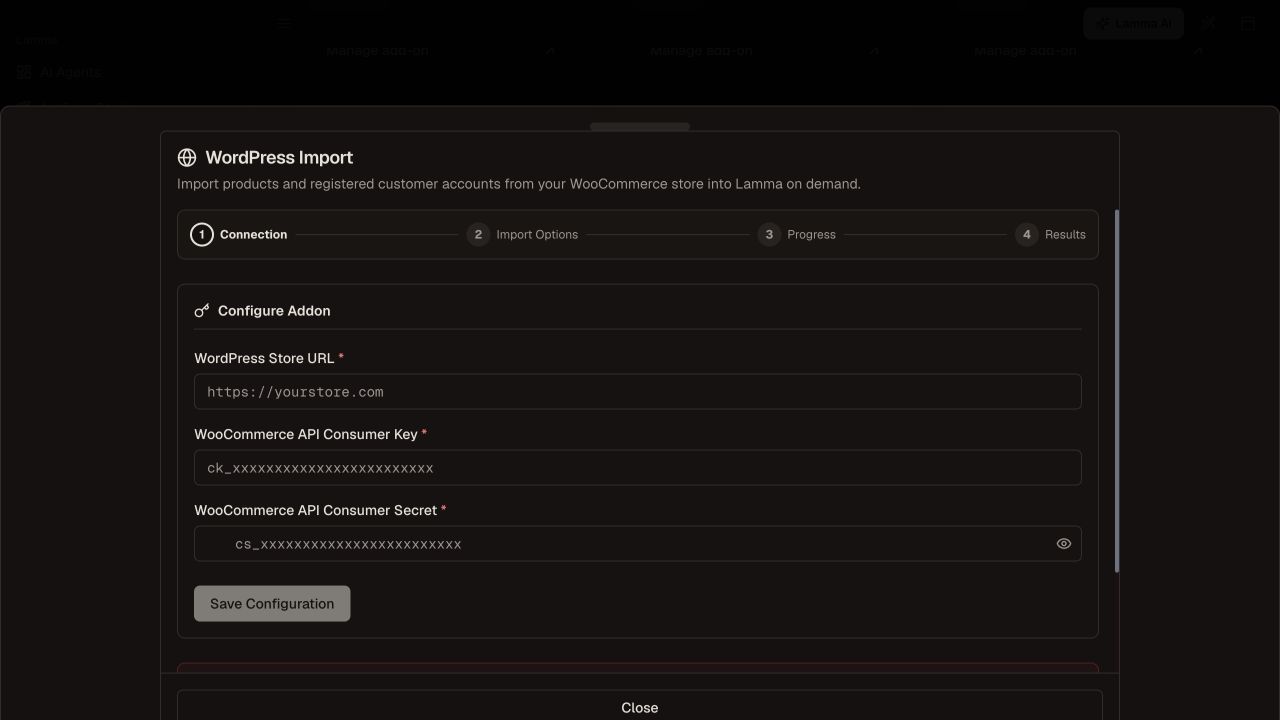
Step 2 — Enter the WooCommerce store connection details and use the offered validation before importing.Demonstration store · sample data. Available features may differ by plan or rollout.View full-size screenshot ↗ Review the import preview and available category selection.
Start a small product import before attempting the full catalog.
Monitor its import process and inspect failures; use the dedicated customer-import action only when intended.
Review product options, images, prices, stock and customer data after completion.
What to check afterward
The import reports its outcome and the resulting records can be checked in Lamma.
If something does not work
An import is not a guarantee of continuous bidirectional synchronization. The clear-store action is destructive and is not required for a normal import. Never use it merely to retry a failed connection.
Still need help? Contact Lamma support with your store, the affected record and the exact error. Keep passwords and API keys private.