
Connect Zoho Inventory
Choose the organization and stock location, import products and inspect order sync.
Access depends on your current plan, permissions and store configuration.
Before you start
Activate Zoho and prepare authorized Self Client credentials and the required scopes.
Open the relevant dashboard screen ↗Steps
Open the Zoho setup guide and enter the regional account, organization and credentials requested.
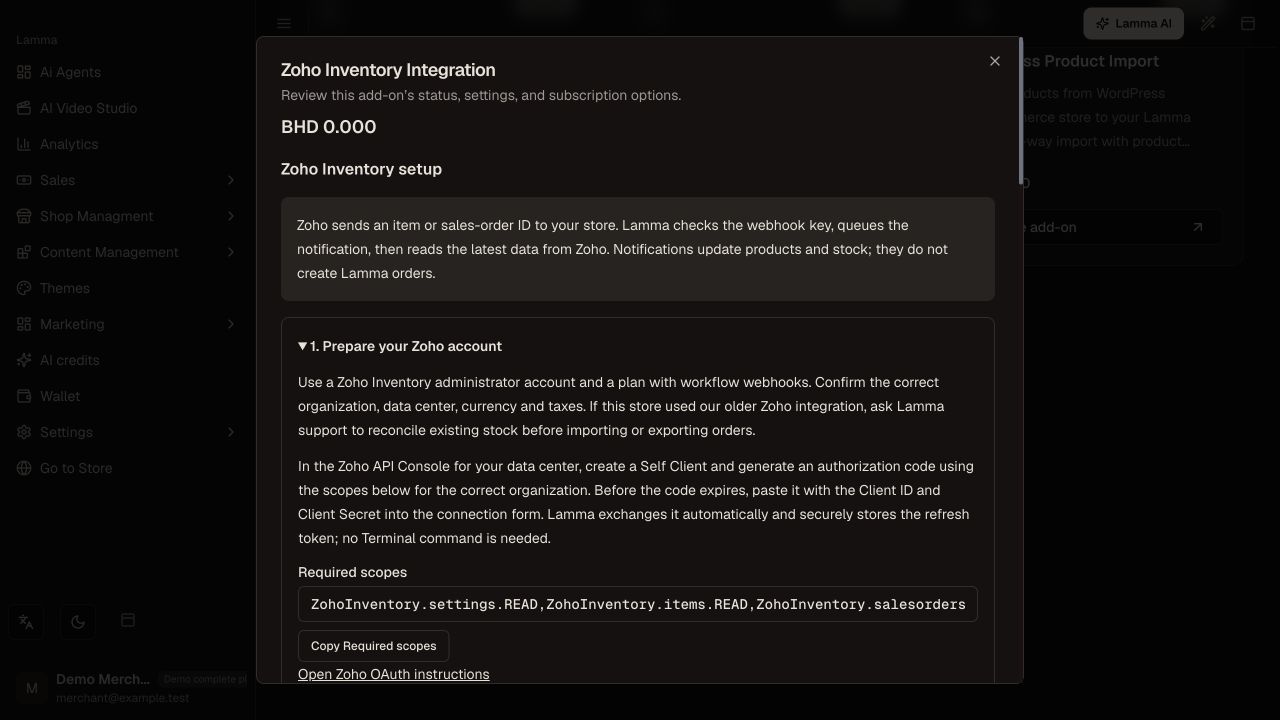
Step 1 — Follow the Zoho setup guide for the correct regional account, organization and protected credentials.Demonstration store · sample data. Available features may differ by plan or rollout.View full-size screenshot ↗ Select the stock location where offered and review any location-switch preview before confirming.
Save and test organization access.
Configure the shop-specific Item and Sales Order webhook/workflow actions using the endpoint and protected key shown by setup.
Start an import and monitor progress; inspect sync issues and resume controls where offered.
Verify one inbound stock update and one outbound authorized order in Zoho.
What to check afterward
Imported records and order-sync outcomes can be inspected against the selected organization/location.
If something does not work
A successful connection or an empty issues list does not prove webhook delivery. Notification queued only means receipt. Invoices, payments, returns and fulfillment still need the responsibilities described in setup.
Still need help? Contact Lamma support with your store, the affected record and the exact error. Keep passwords and API keys private.