
Check storefront browsing, search and wishlists
Review how customers discover products and return to saved items.
Access depends on your current plan, permissions and store configuration.
Before you start
Use the public storefront and at least one published product with accurate stock.
Steps
Open the home page and follow the store navigation to the shop or collections.
Search for a product by a distinctive name and check the result links.
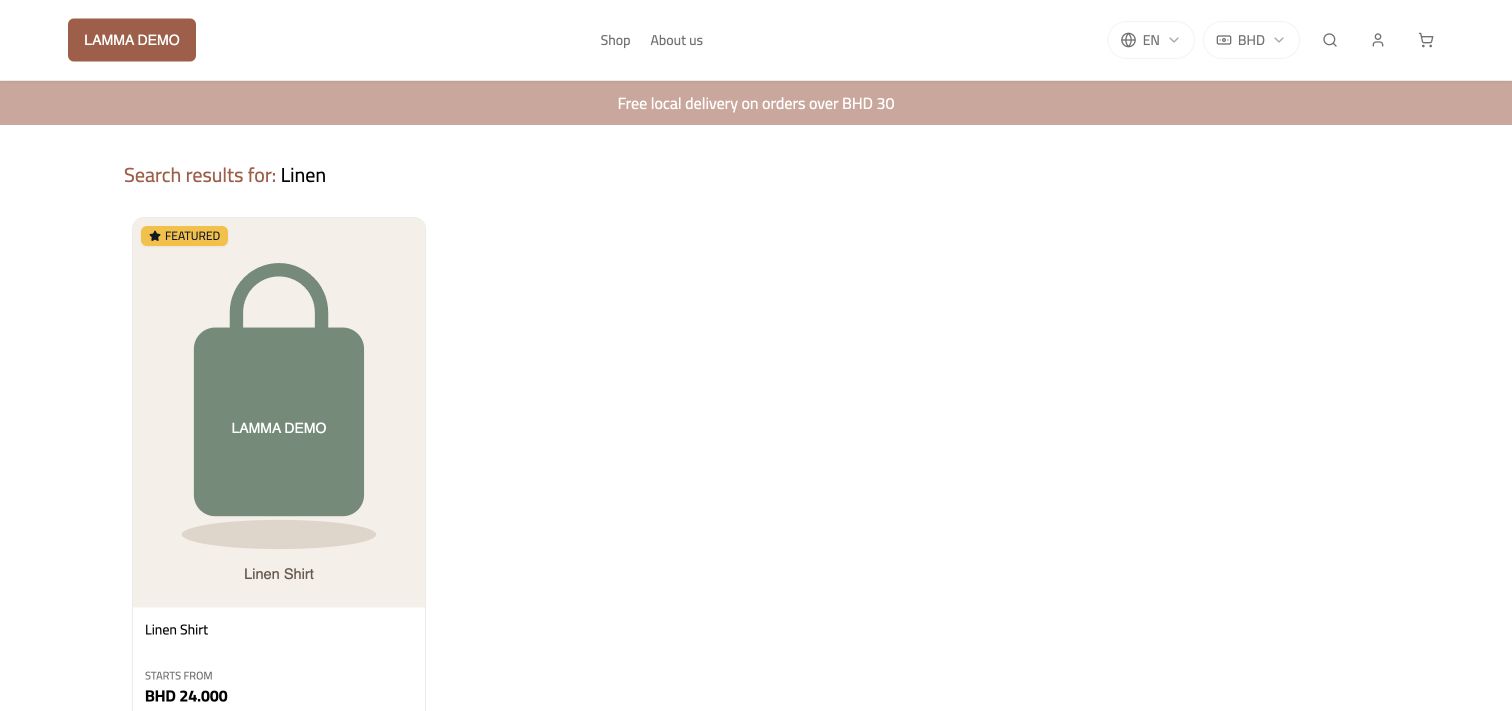
Step 2 — Search for a distinctive product name and confirm that each result opens the intended product.Demonstration store · sample data. Available features may differ by plan or rollout.View full-size screenshot ↗ Open the product, select its required choices and add it to the cart.
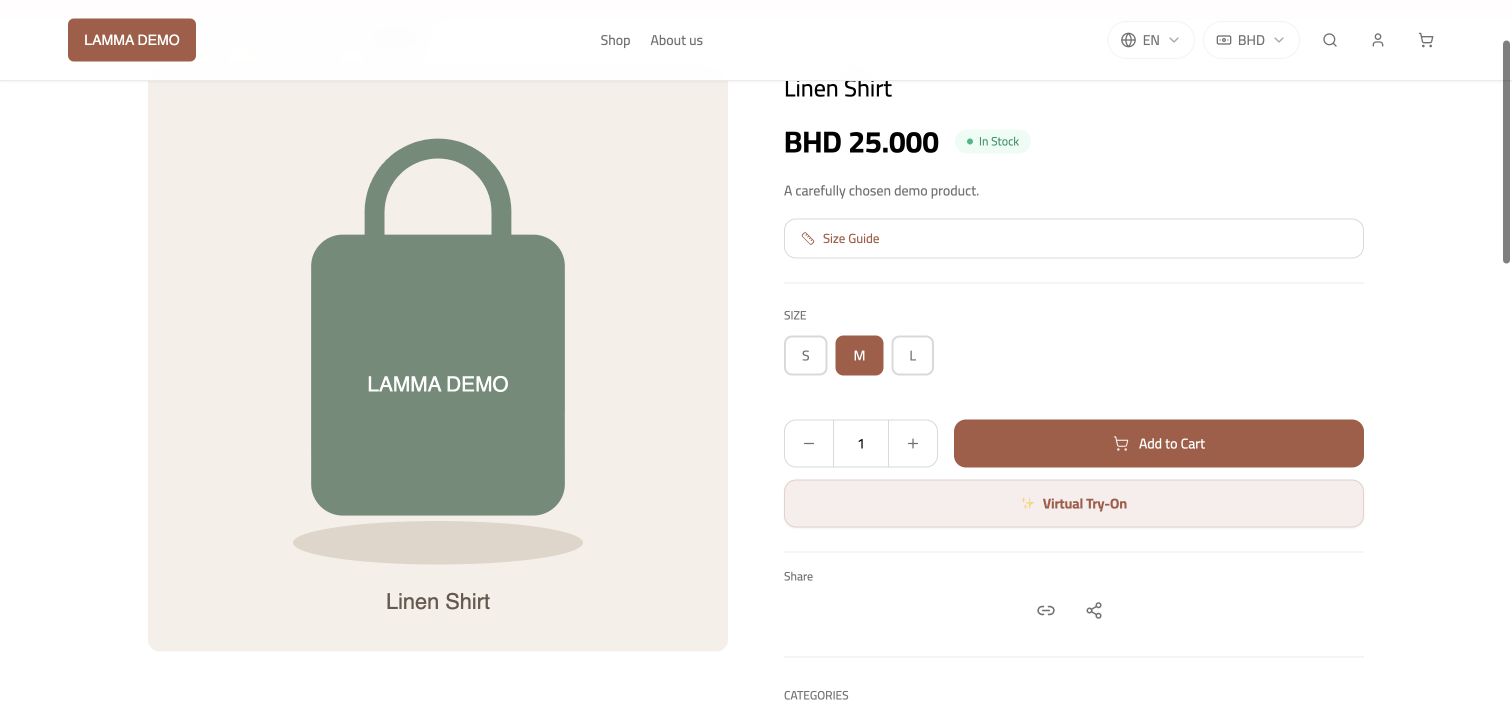
Step 3 — Open the search result, select the required choices and check the product’s purchase controls.Demonstration store · sample data. Available features may differ by plan or rollout.View full-size screenshot ↗ Review the wishlist control and saved wishlist using an eligible shopper session.
Check profile and order-history navigation when signed in.
Repeat on mobile, including browser back navigation and the cart.
What to check afterward
Customers can discover the intended product and continue through the shopping journey.
If something does not work
Theme layouts and filters differ. Missing products may be draft, unavailable or excluded by the current category/filter. A wishlist saves interest; it does not reserve stock.
Still need help? Contact Lamma support with your store, the affected record and the exact error. Keep passwords and API keys private.